
Add your own photos of homes
Using Ruuster 1.0? Read the 1.0 version of this article.
Add your own photos of homes you tour, view them full screen and remove ones you don't need.
On a home's page, scroll to the bottom, past the map, to the Photos card and click Select photos. Your pictures stay on that home's page, so you always know which house they came from. Once a home has your photos, the button reads Add photos.
Before you start
- You need to be signed in to your account. Photos doesn't show on your agent's public page or on a brokerage website.
- Photos can be SVG, PNG, JPG or GIF files, up to 5MB each.
Add photos to a home
- Open the home's page from Home Search or Favorites.
- Scroll to the bottom of the page, past the map, to the Photos card.
- Click Select photos. If you've added photos to this home before, click Add photos.
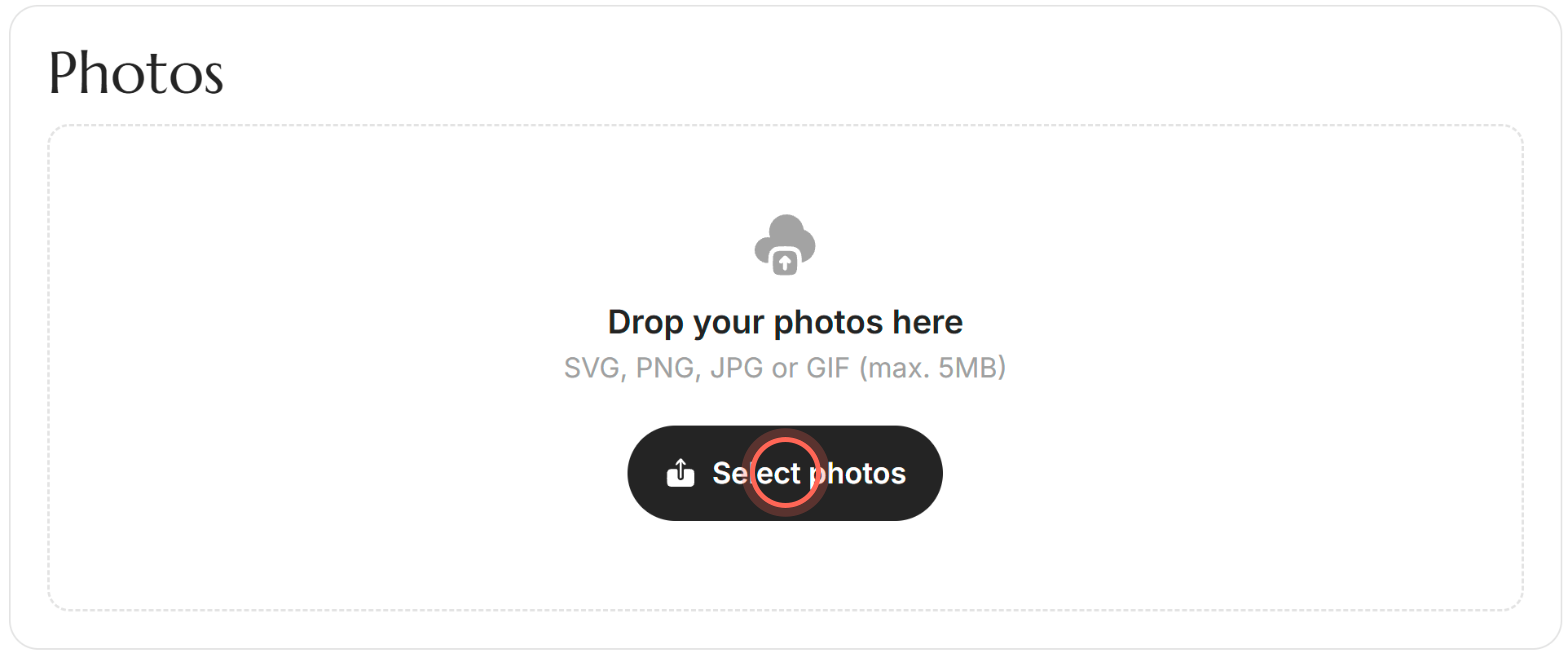
- Pick one or more photos and confirm.
A "Photo uploaded" or "Photos uploaded" message appears and your pictures show as small thumbnails under Photos. On a computer, you can also drag photos onto the box that says "Drop your photos here".
View a photo full screen
- Under Photos, click one of your photos.
- Close the viewer when you're done.
The photo opens full screen. Zoom in to check details like a crack in the ceiling, or move on to your next photo of the home.
Remove a photo
- Under Photos, click the X on the photo you want to remove.
- In Remove this photo?, click Remove.
The photo disappears from the home. The window warns "This photo will be permanently removed. This action can't be undone." Click Cancel if you change your mind.
Good to know
- Who sees your photos. You and your agent. Your agent sees them alongside your other activity on that home. They aren't added to the listing's own photos, and sellers and other buyers can't see them.
- Not on every home. Homes from some MLSs (the listing services agents use to share homes for sale) don't allow your own photos, so Photos doesn't appear on them. You can still add notes and ratings.
- If an upload fails. You'll see "Couldn't upload your photos", or "Some photos couldn't be uploaded" with the file names. Check that each file is a supported type under 5MB, then try again.
- If a photo won't delete. You'll see "Couldn't remove the photo". Try again in a moment.
FAQ
Can I take pictures during a home tour?
Yes. Open the home's page on your phone and tap Select photos or Add photos. Your phone lets you pick from your photo library, and most phones also offer to take a new picture.
Where do my property photos go?
They stay on that home's page under Photos. Heart the home (see Favorite homes) so you can find it again quickly in Favorites.
Can I add photos after the tour is over?
Yes. Open the home any time and add pictures that are already on your phone or computer.
I removed a photo by mistake. Can I get it back?
No. Removed photos are deleted for good. If you still have the picture on your device, add it again.
Still need help? Reach out to us at helpme@ruuster.com and we'd be happy to assist!