
Filter homes
Narrow homes by status, price, beds and baths, home type and More filters, and clear filters to start over.
On Home Search, click More filters to narrow the homes by status, price, bedrooms and bathrooms, home type and more. The results update as you change each filter. Click Show results to close the panel, or Reset all to start over.
Use the quick filters
On a wide screen, Status, Price, Beds & baths and Home type sit beside the search box. On smaller screens they're hidden, and you set the same filters in More filters.
- On Home Search, click Status, Price, Beds & baths or Home type.
- Tick the options you want, or type numbers in No Min and No Max.
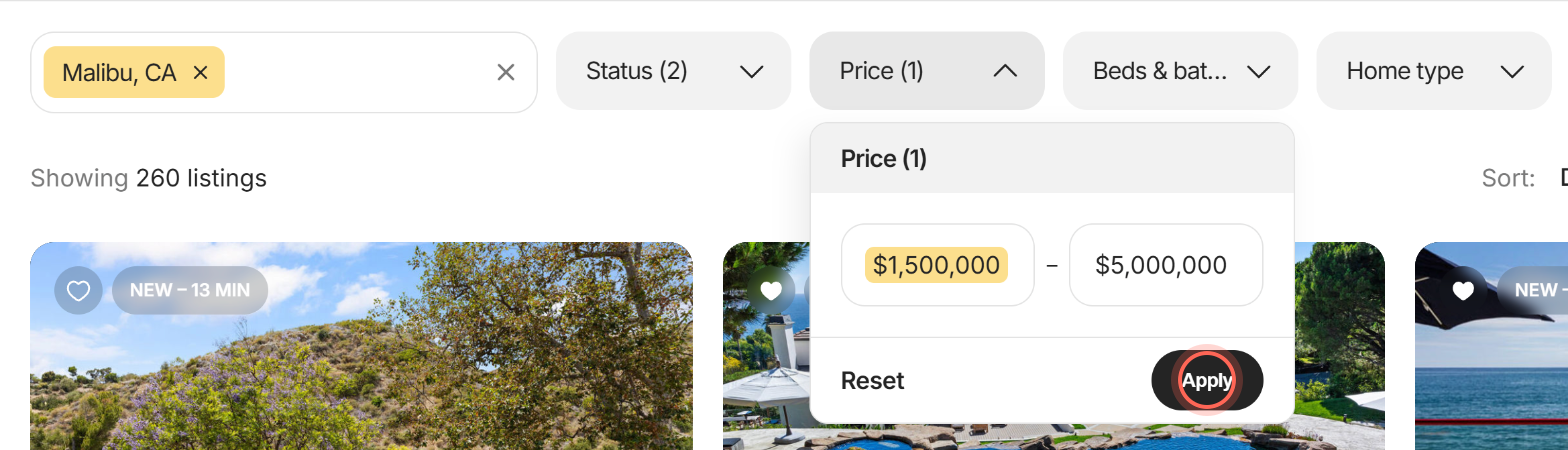
- Click Apply.
The results update, and the number on the button counts the choices you set: Status (3) for three statuses, Beds & baths (2) for beds and baths, Price (1) for a price range. Reset clears that one filter. Clicking outside the menu closes it without changing anything.
The statuses your app offers come from your brokerage's MLS (the shared database of homes for sale). Select all at the top ticks every one. These are the usual ones:
| Status | What it means |
|---|---|
| Active | For sale now. |
| Coming Soon | Listed, and about to go on the market. |
| Pending or Under Contract | The seller has accepted an offer and the sale is in progress. |
| Contingent | The seller has accepted an offer that depends on conditions, such as an inspection or the buyer's loan. |
| Sold | The sale has closed. To choose how far back to look, set Sold Period in More filters. |
| Other | Listings taken off the market, for example canceled, expired or withdrawn. |
Set filters in More filters
- On Home Search, click More filters. On a phone, tap the filter icon beside the search box.
- Scroll to a filter and set it.
- Optional: click More options at the right end of a filter's name to choose how it matches.
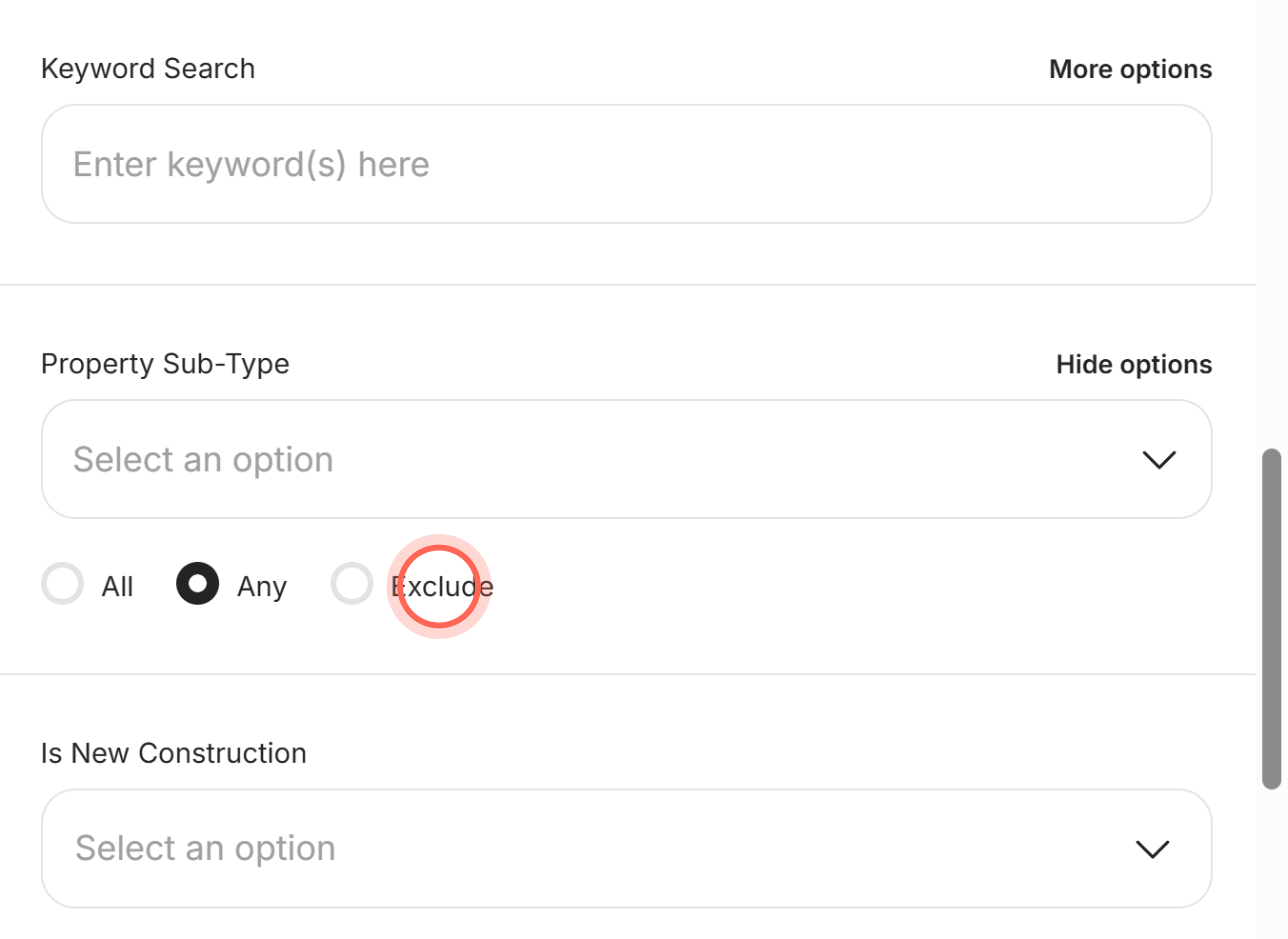
- Click Show results.
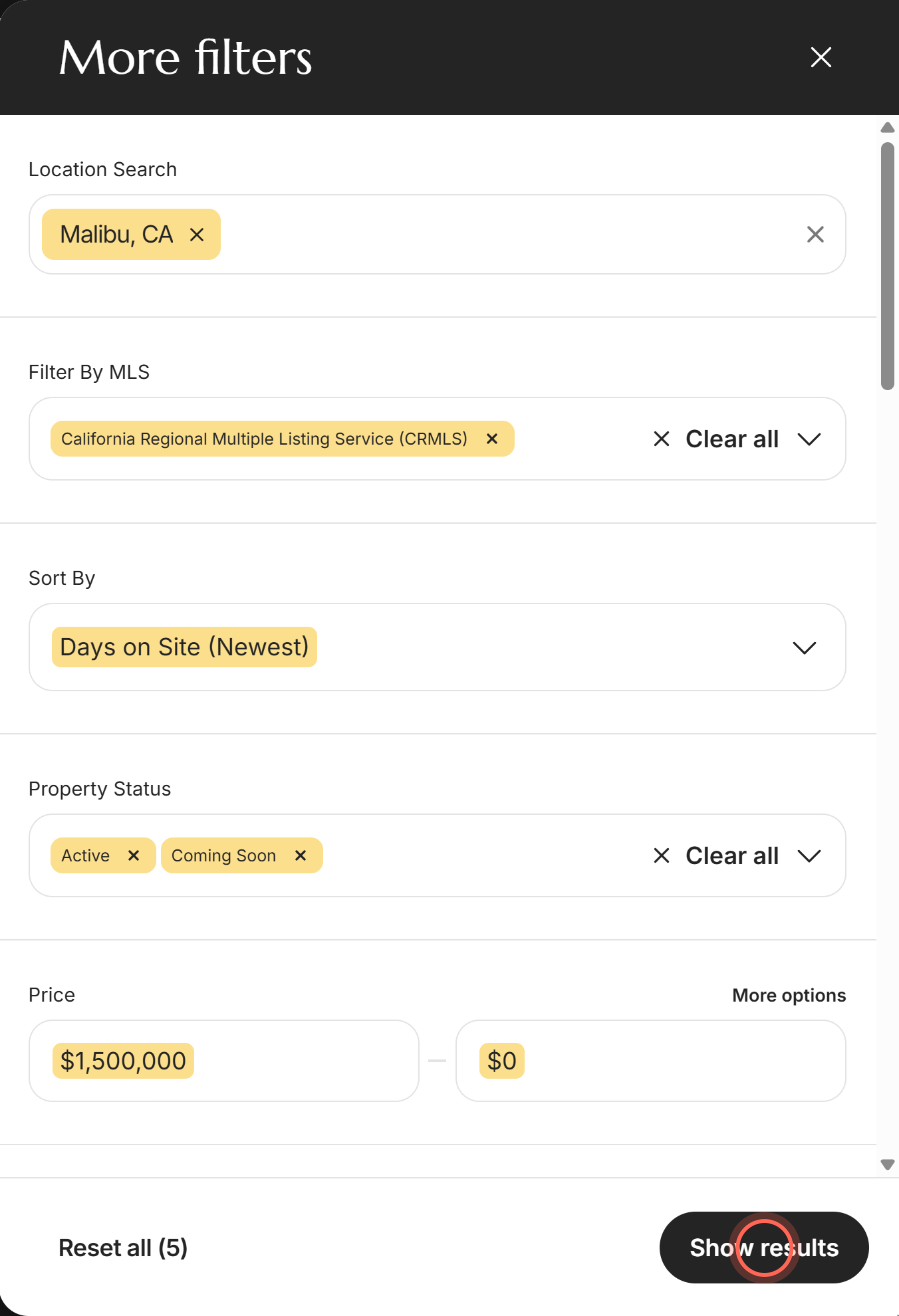
Results change a moment after each edit, and Show results closes the panel. The button then shows your count, for example More filters (5). While More options is open it reads Hide options; click it to fold the choices away.
The filters you see, their names and their order are set by your brokerage, so your list may differ. They work in a few ways:
| Filter | How to set it |
|---|---|
| Property Status | Pick one or more. If you clear them all, Active comes back. Picking Sold adds Sold Period here, from Last week to Last 1 year. A row with your MLS's own status names may also appear. |
| Price, Bedrooms and Total Bathrooms | Type numbers in No Min and No Max. Price shows a $ sign. Results update as you type. |
| Square Feet, Lot Size, Year Built and other ranges with a list | Type a number and press Enter, or click a suggested number in the list. If you click away first, the number is cleared. |
| Yes or no filters, like Has HOA Fee | Choose Yes or No in Select an option. (An HOA is a homeowners association, which charges a fee in many condos and planned communities.) |
| Option lists, like Property Sub-Type | Pick one or more values in Select an option. The x clears them. |
| Long lists | Type at least 3 letters and pick from the matches. "No options" means nothing matched. |
| Keyword Search | Type a word, like "pool", in Enter keyword(s) here, then press Enter. Click a keyword's x to remove it. |
| Dates | Pick a day in Select or type a date, or click Clear date. Some date filters offer choices from Today to Past Month instead. |
| Filter By MLS | Limits homes to the MLSs you pick. It only shows when your search already has an MLS set, for example from a saved search or a link your agent sent. |
| Listing or agent IDs | Type at least 2 characters and pick a match. These usually come from a link your agent sent. |
| Location Search and Sort By | Work like the search box and the Sort: menu on Home Search. |
| More options | Any (the default) shows homes with any of the values you picked, All only homes with every one, and Exclude leaves those homes out. Number filters ask Include Zero and Blank? instead, with No as the default. |
Remove a filter your agent added
If your agent sent you a search with extra filters, they show at the bottom of More filters under Advanced Filters:. You can't change their values, but you can remove them.
- On Home Search, click More filters.
- Scroll down to Advanced Filters:.
- Click the red x beside the filter you want to remove.
The filter drops out and the results update. A place filter can only be removed while another place is still in your search.
Reset all filters
- At the bottom of More filters, click Reset all. It shows your count, for example Reset all (5).
- In "Are you sure you want to reset all filters?", click Reset filters.
Your filters and sort order are cleared, the status goes back to Active, and the results update. Your places and the map area stay, so you're not starting from a blank search. Cancel keeps everything as it was.
Good to know
- Changes apply right away. In More filters, results update as soon as each filter is set. Show results only closes the panel.
- Blank fields drop out. Many listings leave optional fields empty. With Include Zero and Blank? set to No, those homes are left out.
- Keep your filters. Click Save on Home Search to keep these filters and get alerts for new homes. See Save a search and get alerts.
- Need a different area? To search more places or draw your own, see Search for homes and Search on the map.
- If More filters opens empty. The filters didn't load. Close the panel and open it again, or reload the page.
FAQ
How do I find homes with a pool or a big yard?
Type "pool" in Keyword Search and press Enter to match listing descriptions. For yard size, set a minimum in Lot Size.
Can I see only homes without an HOA?
If your app offers Has HOA Fee, set it to No. You can also set a maximum in HOA Fee (Monthly).
How do I hide 55+ communities?
If your app offers Is Senior Community, set it to No.
I typed a square footage minimum and nothing changed. What am I missing?
Press Enter, or click the number in the list. If you click away first, it isn't applied. Picking a minimum above the maximum also clears the maximum.
Why did Active come back after I cleared every status?
A search always needs at least one status, so Active returns when the list is empty. Pick the statuses you want and Active can be removed.
Why can't I change a filter my agent set up?
Filters your agent added show under Advanced Filters: as read-only. Click the red x to remove one, or ask your agent to change it.
Still need help? Reach out to us at helpme@ruuster.com and we'd be happy to assist!