
Search on the map
Draw a shape on the map to search only that area, move the map to search somewhere new, and switch to satellite view.
On Home Search, click Map to see homes as price pins. Move or zoom the map and Home Search shows the homes in the area you're looking at. To search an exact area, draw a shape or a circle with the round buttons in the bottom-right corner of the map.
Search the area you can see
- On Home Search, click Map above the results.
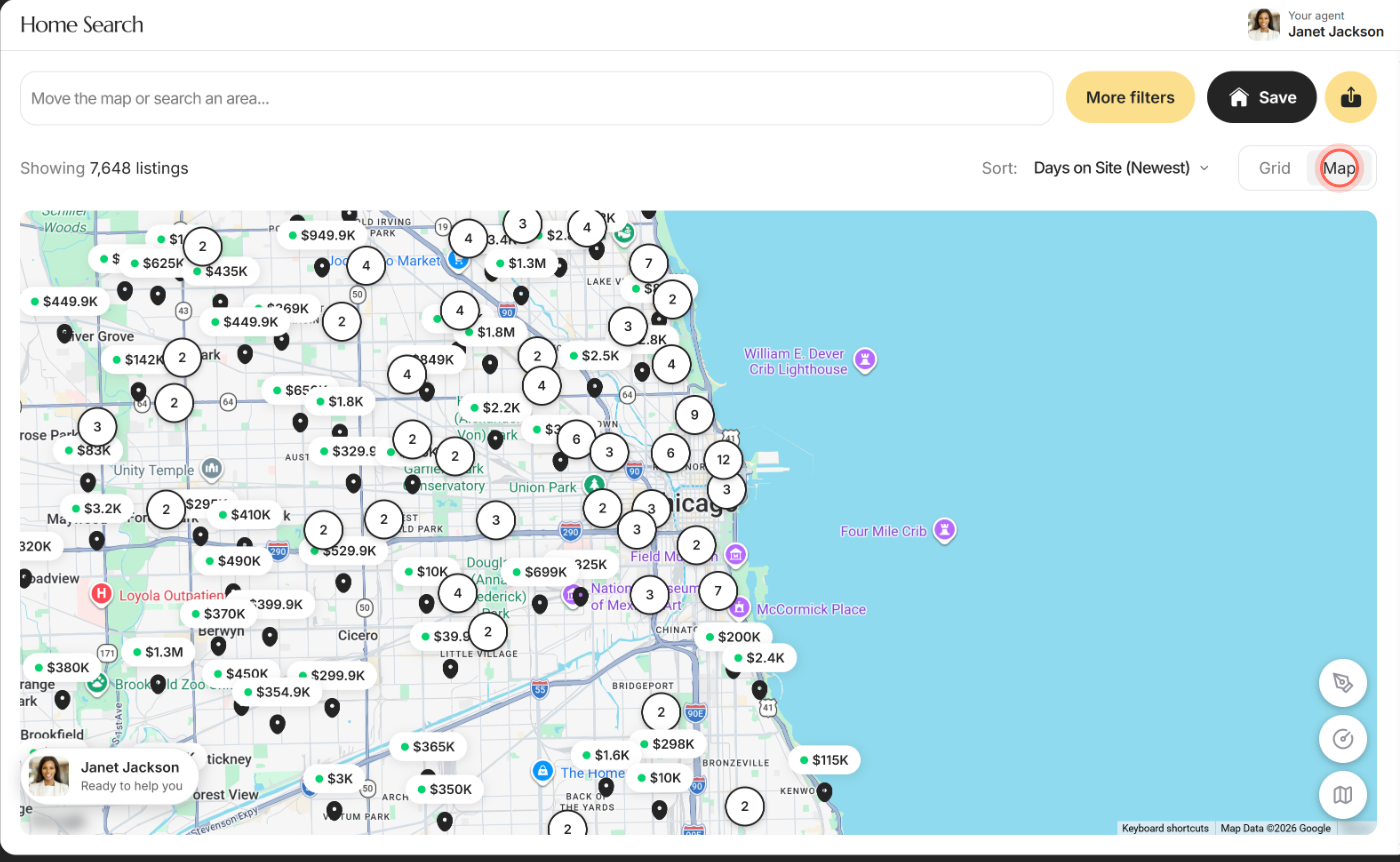
- Drag or zoom the map to the area you want.
- Click a price pin to open that home.
- Click a round bubble with a number to zoom into that group of homes.
The results refresh when the map stops moving, and the count above them updates for the area on screen. Each pin shows a short price and a colored dot for its status, and a heart marks homes you've favorited.
When no place is picked, the search box reads "Move the map or search an area...". Picking a place in the box moves the map there.
The map buttons
The round buttons in the bottom-right corner of the map have icons but no labels. From the top:
| Control | What it does | Learn more |
|---|---|---|
| Pen button (a pen nib) | Draws a shape with corners. While you draw, it turns into a red X; click the X to cancel. | |
| Circle button (a circle with a short line from its center, like a dial) | Draws a circle. While you draw, it also turns into a red X. | |
| Padlock button | Appears only after you've drawn an area. An open padlock means you can reshape your areas; click it to lock them, and it shows a closed padlock. | |
| Map style button (a folded map or a globe) | Switches between the road map and satellite pictures. It shows a folded map on the road map and a globe on satellite. | |
| Remove bounds | Sits to the left of the map style button once you've picked a place or drawn an area. Clears every place and shape. |
Draw your own search area
- On the Home Search map, click the pen button (a pen nib) at the top of the round buttons.
- Click on the map to place each corner of the area you want.
- To finish, double-click on the last corner you placed, or click the first point.
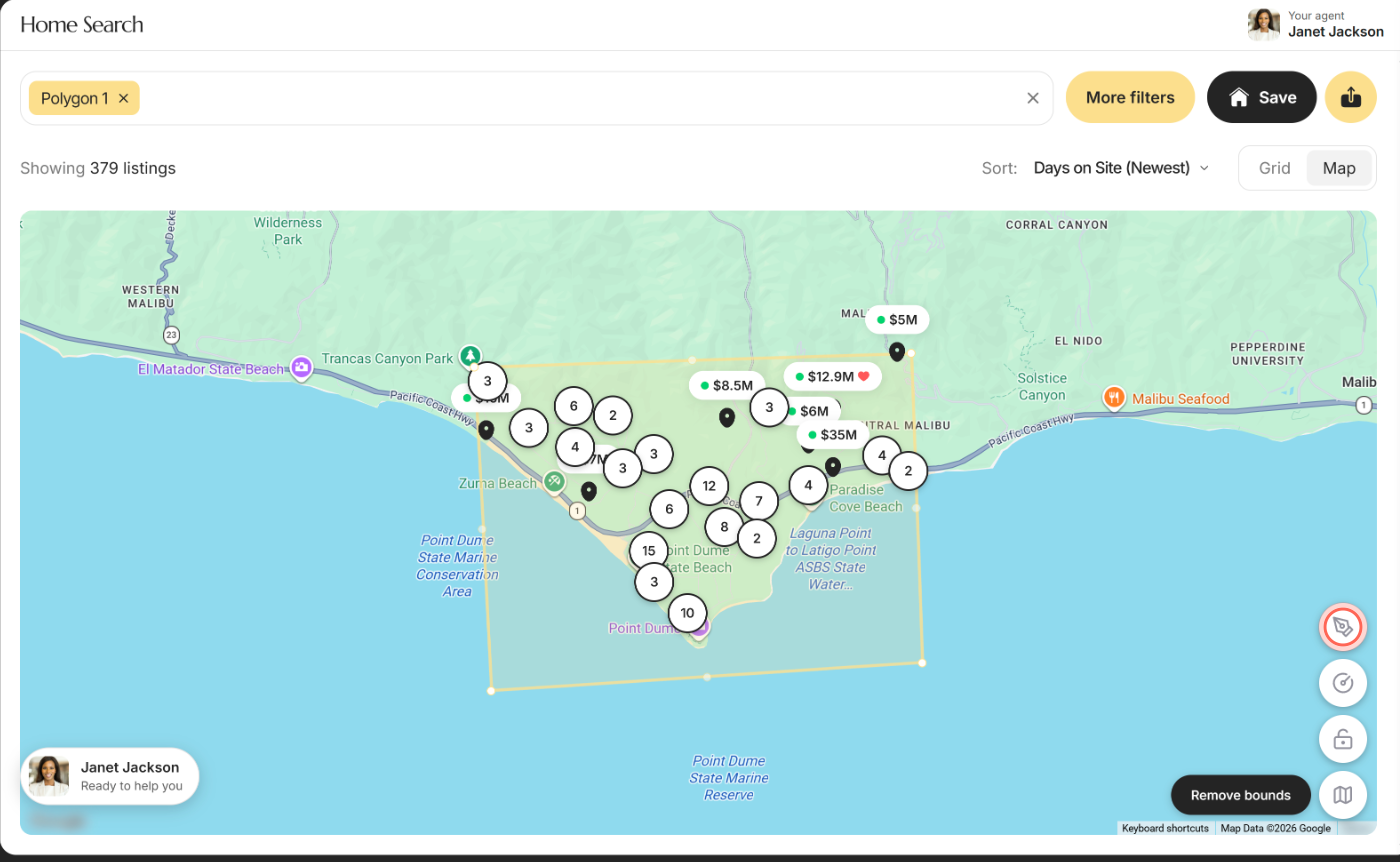
The shape becomes a chip named "Polygon 1" in the search box, and the results show the homes inside it, plus any other places in the box. A shape needs at least 3 corners. Double-click right on your last corner, because the spot you double-click isn't added as a new corner. To cancel, press Esc or click the red X.
To draw a circle instead, for example around your work, click the circle button under the pen button. Press where you want the center and drag outward; a label shows the distance in miles. Release to finish, and the circle becomes a chip named "Circle 1". A very small circle is ignored, so drag a little further if nothing appears.
Change or remove a drawn area
- To reshape an area, drag one of its corner points. To move it, drag the whole shape.
- Click the padlock button under the circle button so shapes can't move by accident. Click it again to unlock.
- To remove one area, click the x on its chip in the search box.
- To clear every place and shape, click Remove bounds on the map.
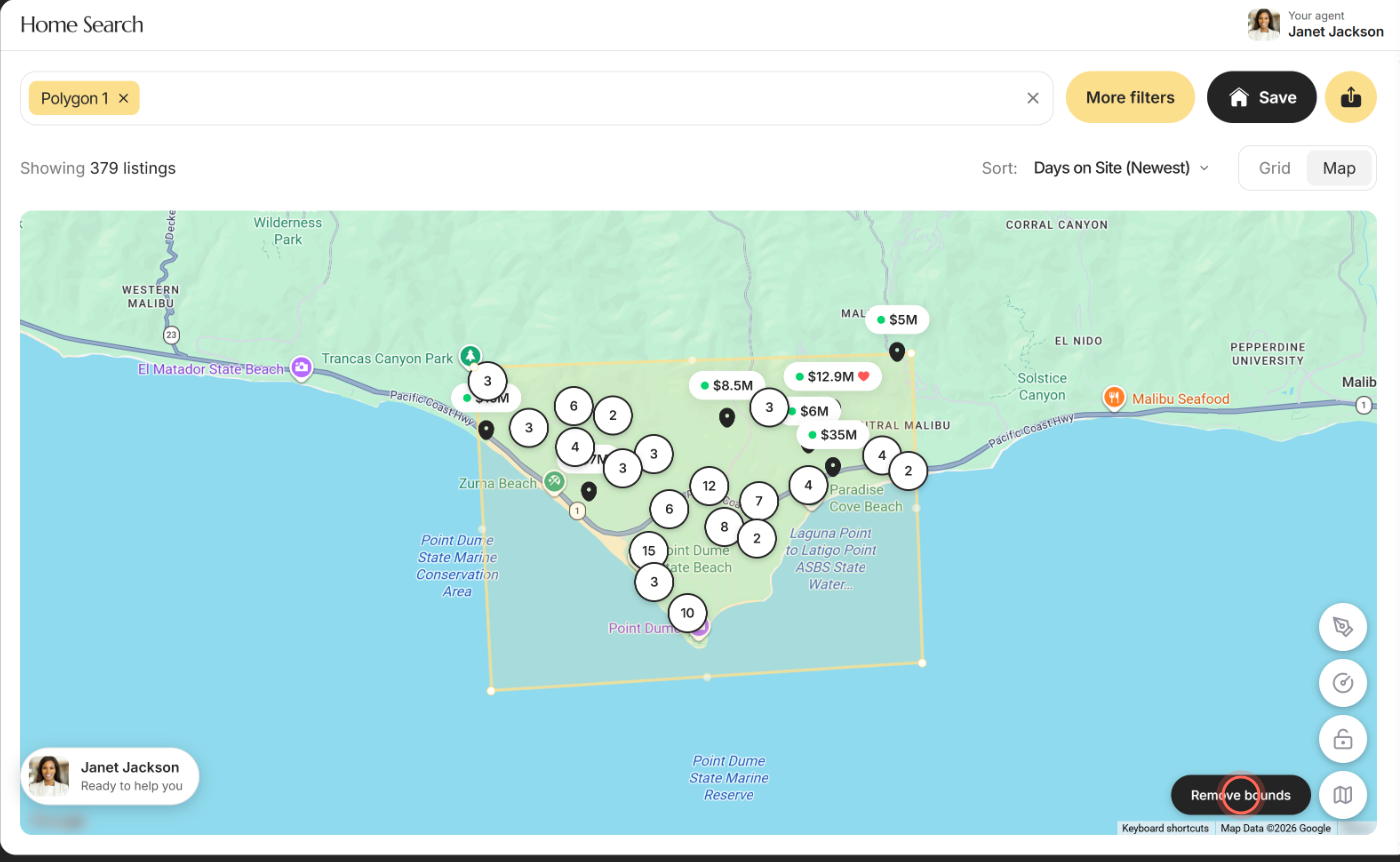
The results follow each change. After Remove bounds, Home Search goes back to showing the homes in the area on screen.
Good to know
- Several areas at once. Each shape or circle adds a chip, such as "Polygon 2". Results cover all of them and the other places in your search box.
- Pins pause while drawing. You can't open a home from a pin while a draw button is on. Finish or cancel the shape first.
- Satellite view. The map style button (a folded map) at the bottom switches to satellite pictures and then shows a globe. Home Search doesn't remember your choice.
- Get alerts for your area. Click Save to get emails about new homes inside your shape. See Save a search and get alerts.
- No place picked yet. Until you pick a place or move the map, the map may open on Chicago. Type your city to jump there.
FAQ
Searching near my current location shows no homes. Why?
Current location centers the map tightly on where you are. Zoom out on the map to take in more, or type your city instead. Home Search only shows homes in the area your agent's brokerage covers, so nothing shows if you're outside it.
Why does the number of homes change when I switch to Map?
In Map view, Home Search counts only the homes inside the area you can see. A city that runs off the screen shows fewer. Zoom out to take in all of it.
Why don't I see a pin for every home in the count?
The map draws up to 200 homes at a time. Zoom in to see the rest, or switch to Grid to scroll through all of them.
How do I get rid of a shape I drew?
Click the x on its chip in the search box, or click Remove bounds on the map to clear every area at once.
The map won't load. What's wrong?
The map shows "Loading..." until it finds your area. If it says "Map unavailable", email us at helpme@ruuster.com.
Still need help? Reach out to us at helpme@ruuster.com and we'd be happy to assist!