
I'm not getting emails or my sign-in code
Get a new code, check spam and your phone number, and fix new-home emails that stopped arriving.
If your agent's app asks for a code and none arrives, wait for the timer, then click Resend Code. Use the code from the newest text. For missing emails, check spam, your email in Settings, and that Email is ticked on your saved searches.
The sign-in code didn't arrive
Cause If your agent's app asks for a code, it's texted to the phone number on your account. Texts can take a minute, carriers sometimes hold them up, and some phones file texts from unknown senders away from your main messages.
Fix
- Wait for the Resend code in timer to finish. It takes 45 seconds.
- Click Resend Code.
- Check your messages, including any filtered or unknown senders list.
- Type the code from the newest text.
On the screen asking for your code, a message confirms "New OTP code was sent to your phone." For first-time setup, see Verify your account.
The code says it isn't right
Cause A code works for 5 minutes, and only the newest one counts. An older code shows "That code is not right. Check the newest text message and try again."
Fix
- Open the newest text and type that code.
- If it's more than 5 minutes old, click Resend Code and use the new one.
The code goes to an old or wrong number
Cause The code always goes to the phone number on your account.
Fix On Enter your code during first-time setup, click Wrong number?, fix the number and click Send Code. The number you enter there also becomes your password.
At sign-in, the screen asking for your code shows only the last digits of your number and has no way to change it. Email helpme@ruuster.com from the address you sign in with for help.
"We could not text that number"
Cause The text didn't go through. The number may be mistyped, or the carrier had a hiccup.
Fix Click Try again. If the number is wrong, click Use a different number and fix it.
The code for a new number in Settings didn't arrive
Cause When you change your number in Settings, the confirmation code goes to the new number you typed.
Fix
- Check the number in Phone Number.
- Refresh Settings.
- Type the new number again.
- Click Send confirmation code.
Your old number stays on your account until you enter the code and click Save. See Update your contact information.
The password reset email didn't arrive
Cause Reset emails go only to the email you sign in with, and they can land in spam. They come from notifications@ruuster.com under your brokerage's name.
Fix
- Search your spam and promotions folders for "Reset Your Password".
- On the sign-in page, click Forgot password? and enter the exact email you sign in with.
- Use the newest email if you asked more than once.
If you see "Too many password change requests," wait the minutes shown, then ask again.
New-home alert emails stopped
Cause
- The search is set to No update, or Email is unticked.
- You clicked Unsubscribe in an alert or marked one as spam. Either turns email alerts off on your saved searches.
- An alert couldn't be delivered to your address, which also turns them off.
- No new homes match the search yet.
Fix
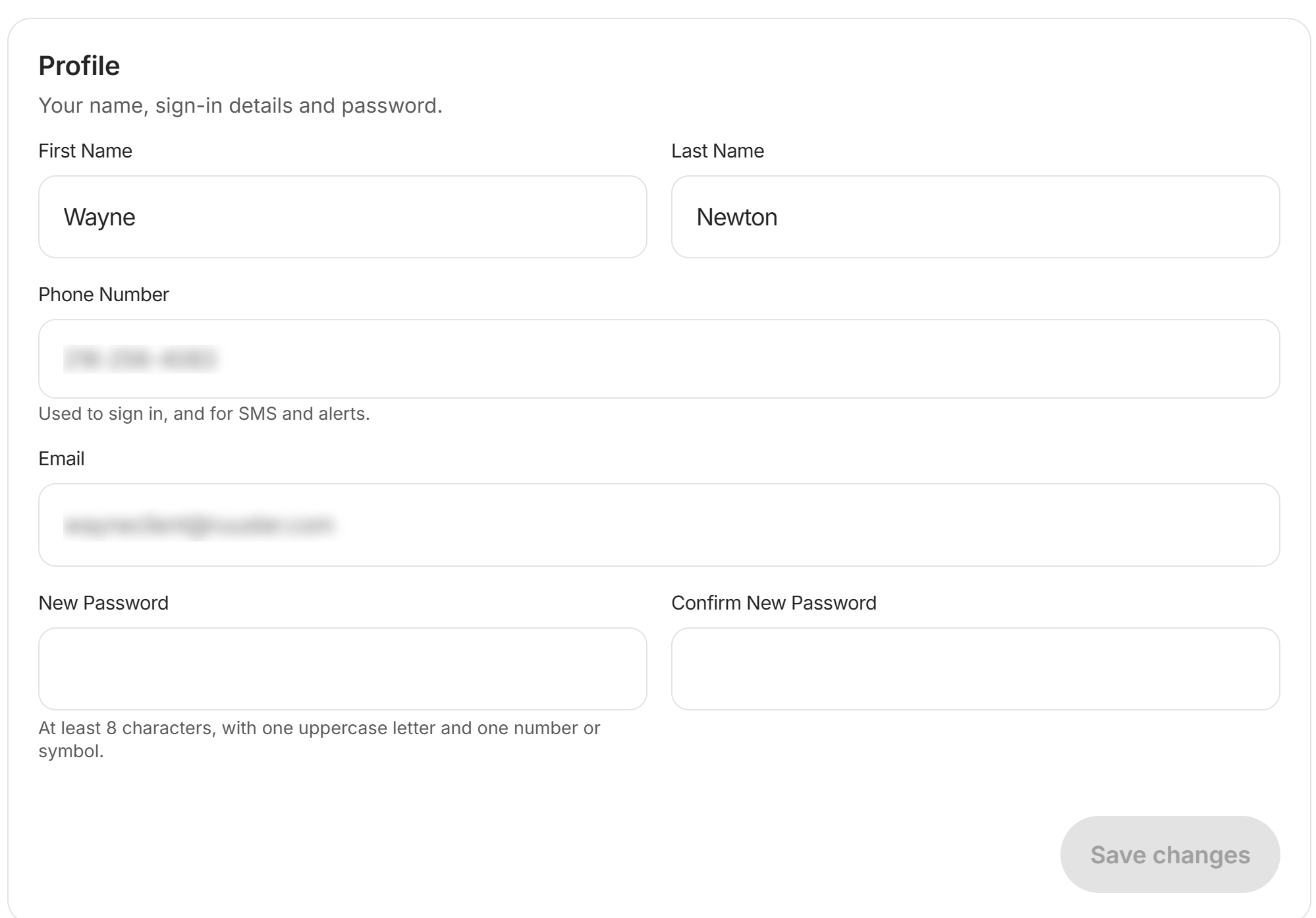
- In Settings, check the Email in Profile.
- Open Saved Searches and click Edit on the search.
- Pick a frequency under How often should we alert you?.
- Tick Email under Where should alerts go?.
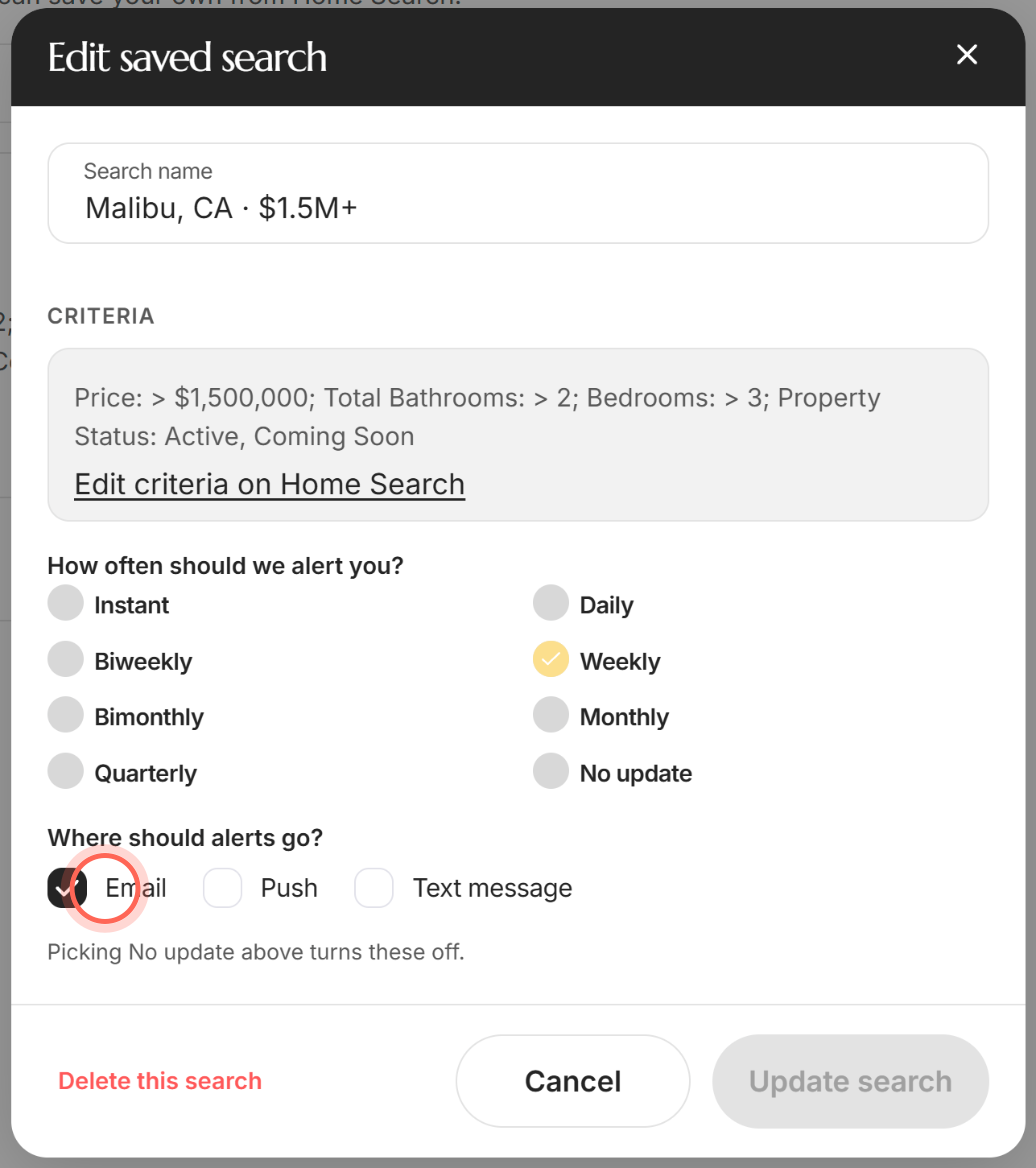
- Click Update search.
- Add savedsearches@ruuster.com to your email contacts.
For more, see Change or stop email alerts.
Text or push alerts don't arrive
Cause Text message shows on a saved search only if your brokerage sends texts. Push shows only if your brokerage has its own app, and needs notifications turned on.
Fix Edit the search on Saved Searches and tick Text message or Push. For push, see Get the app and turn on notifications.
FAQ
Can you email me the code instead?
No. Sign-in codes come by text message only.
Do I always need a code to sign in?
No. Not every agent's app uses text codes. If yours does, a code screen may appear after you enter your email and password.
My iPhone takes forever to get the code. Why?
Carriers can delay texts. Wait for the 45-second timer, click Resend Code, and check any filtered messages list in Messages.
Who sends the new-home alert emails?
"The Team at" your brokerage, from savedsearches@ruuster.com. Search your mail for that address if alerts seem missing.
Still need help? Reach out to us at helpme@ruuster.com and we'd be happy to assist!