
Get the app and turn on notifications
Install your agent's app on your phone and turn on notifications so you hear about new homes and messages.
In your phone's browser, sign in at your agent's app address and tap Open in App Store (iPhone) or Open app (Android) on the Get the app banner. Install the app, sign in, and allow notifications so new homes reach your phone.
Before you start
- The Get the app banner shows only if your agent's brokerage has its own app.
- Sign in to the app with the same email and password you use on the web. If you never set a password, it's your phone number, digits only.
Install the app from your phone's browser
- Open your agent's app address in your phone's browser and sign in.
- On the Get the app banner, tap Open in App Store (iPhone) or Open app (Android).
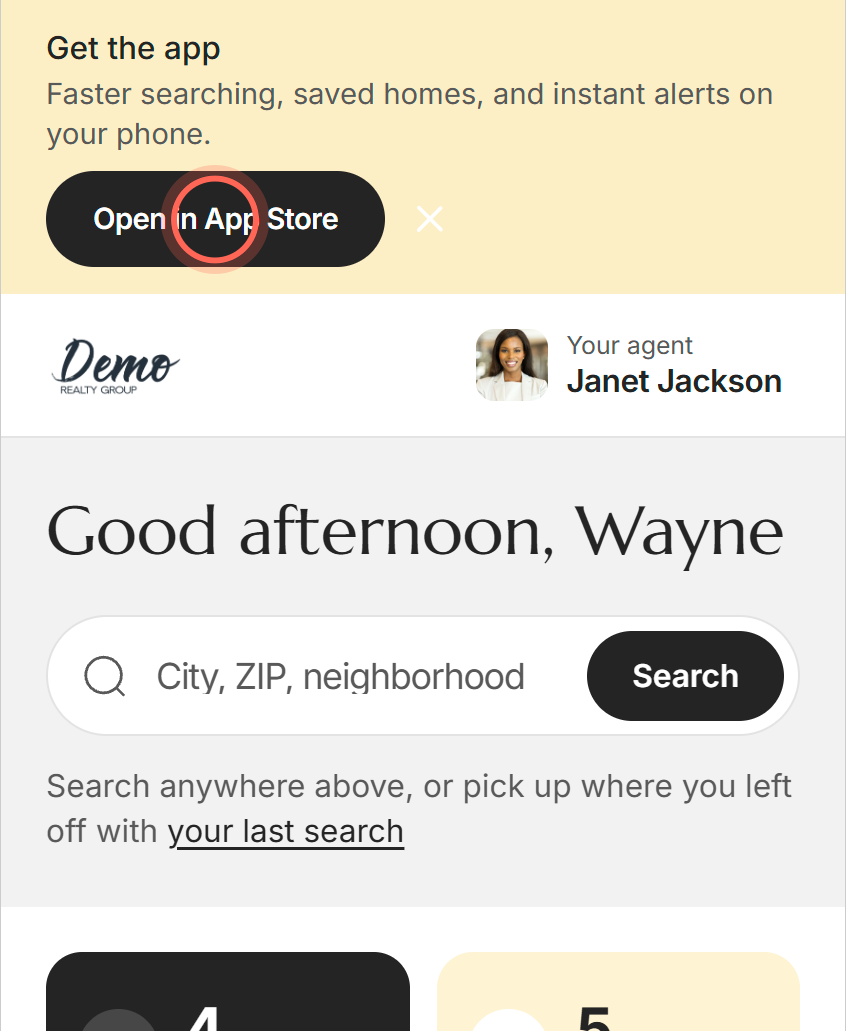
- Install the app from the store.
- Open the app and sign in with your Email and Password.
Your dashboard opens inside the app. On Android, Open app opens the app straight away if it's already installed.
Get the download link by text
On your agent's page, the App Store and Google Play badges under Get the app start your sign-up.
- On your agent's page, tap the App Store or Google Play badge.
- In the Welcome window, enter your First name, Last name, Email and Phone.
- Tap Create account.
A text arrives with a link to download the app. The sign-in page and the sign-up page show App Store and Google Play badges too. If you already have an account, the badges on the sign-in page take you straight to the store.
Turn on notifications in the app
When you first open the app, it may ask to send you notifications. Tap Allow. If you missed or declined that prompt, a Turn on notifications banner appears at the top of the app.
- On Turn on notifications, tap Enable.
- Tap Allow on your phone's prompt.
The banner goes away. If you blocked notifications before, it changes to Notifications are turned off. Tap Open settings, then allow notifications for the app.
What notifications you get
| Notification | When it comes | Learn more |
|---|---|---|
| New homes for a saved search | When new listings match a saved search that has Push picked as an alert channel | Save a search and get alerts |
| Notifications from your agent | When your agent sends one to your phone |
Good to know
- Notifications need the app. Push notifications reach your phone only through your agent's app, not a web browser. Saved search alerts can also come by email or text.
- The X hides banners for now. The X on either banner hides it until your next visit.
- Logging out stops them. When you tap Logout in the app, that phone stops getting your notifications until you sign in again.
- One sign-in for both. The app and the website share your account, so your favorites, searches and chat are the same in both.
FAQ
Where do I download my agent's app?
From the Get the app banner in your phone's browser, or the App Store and Google Play badges on your agent's page, the sign-in page or the sign-up page.
Why don't I see the Get the app banner?
It shows only in a phone browser while you're signed in, never inside the app, and only if your brokerage has its own app. You may also have closed it with the X this visit.
Why does tapping a notification or alert open my browser instead of the app?
Open question: Do email and text alert links open the brokerage's app for every branded app, or only for brokerages listed in the app-link (site association) files?
If your agent's app is installed on that phone, links from your alerts open in the app. If it isn't, they open in your browser. To get the app, see Where do I download my agent's app? above.
I turned notifications off. How do I turn them back on?
Open the app and tap Enable on Turn on notifications. If it says Notifications are turned off, tap Open settings and allow notifications.
Do I need the app, or can I keep using the website?
The website does everything the app does. The app adds push notifications and keeps your search one tap away.
Still need help? Reach out to us at helpme@ruuster.com and we'd be happy to assist!