
Share a home
Using Ruuster 1.0? Read the 1.0 version of this article.
Share a home or your search by text, email or link with the share button, or send a home straight into your chat with your agent.
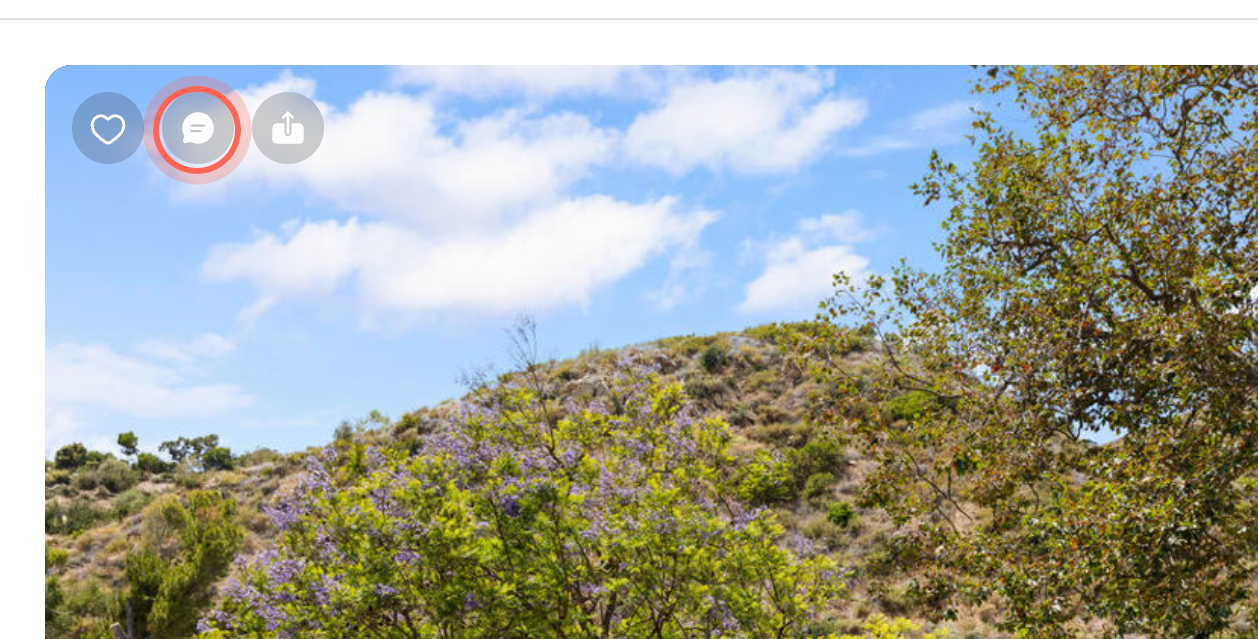
Click the share button over a home's photos. On most phones and computers your device's own share menu opens, so you can text, email or copy the link. The chat button next to it sends the home to your agent the moment you click it.
Share a home with family or friends
- Open the home's page from Home Search or Favorites.
- Click the share button over the photos (the arrow pointing up out of a box).
- In your device's share menu, pick how to send it, for example a text, an email or copy link.
The person gets a link that opens the home. In the full photo gallery, the Share button does the same thing.
Share a home from the Share Link window
If your browser has no share menu of its own, the Share Link window opens instead.
- On the home's page, click the share button over the photos.
- In the Short link row, click the second Copy link.
- Paste the link into a text, an email or a post.
The button changes to "Copied!" for a moment. You can also click the Facebook, WhatsApp or email icon under or. The email icon opens your mail app with the home's link already in the message.
The window says "Share this property with your clients" and mentions PPC ads. That wording is written for agents, so you can ignore it.
Share your search results
- In Home Search, set up the area and filters you want to share.
- Click the share button in the filter bar, next to Save.
- Pick how to send it from your device's share menu, or click Copy link in the Share link window.
The person sees the same search: the same area, filters and matching homes you're looking at. Pasted into a text or social app, the link's preview shows a photo of the first home and "Look at these properties I think you'll be interested in."
Send a home to your agent
Clicking the chat button sends the home to your agent right away, before you type anything. Click it only when you're ready for your agent to see the home.
- Open the home's page.
- Click the chat button over the photos. The home is sent to your agent at once.
Your chat with your agent opens with the home already sent as a card. If you like, add a message such as "Can we see this one Saturday?" and send it. For more ways to reach your agent about a home, see Ask your agent about a home.
Good to know
- Short or long link. In the Share Link window, the short link is best for texts and social posts. The long link is best if it needs to keep working for more than a year.
- Icons wait for the link. The Facebook, WhatsApp and email icons turn on once the short link is ready, which takes a second or two.
- What they see. The link opens the home on your agent's page. They may be asked to create a free account to see every detail.
- Your device decides. Whether you get your device's share menu or the Share Link window depends on your phone or browser. Both send the same home.
FAQ
Does the person I share with need an account?
Not to open the link. Depending on your agent's settings, they may be asked to sign up to see full details or to save homes.
Can I text a property link to someone?
Yes. On your phone, click the share button and pick your messaging app. On a computer, copy the link and paste it into your text.
Can I share a home with my agent and my family at the same time?
Yes. Use the chat button to send it to your agent, then the share button to send it to anyone else.
Where can I see the homes I've shared with my agent?
In your chat with your agent. Each home shows as a card you can click to open it again.
Still need help? Reach out to us at helpme@ruuster.com and we'd be happy to assist!