
Chat with your agent
Using Ruuster 1.0? Read the 1.0 version of this article.
Message your agent from the chat bubble, send photos and homes, edit or delete your messages and search your conversation.
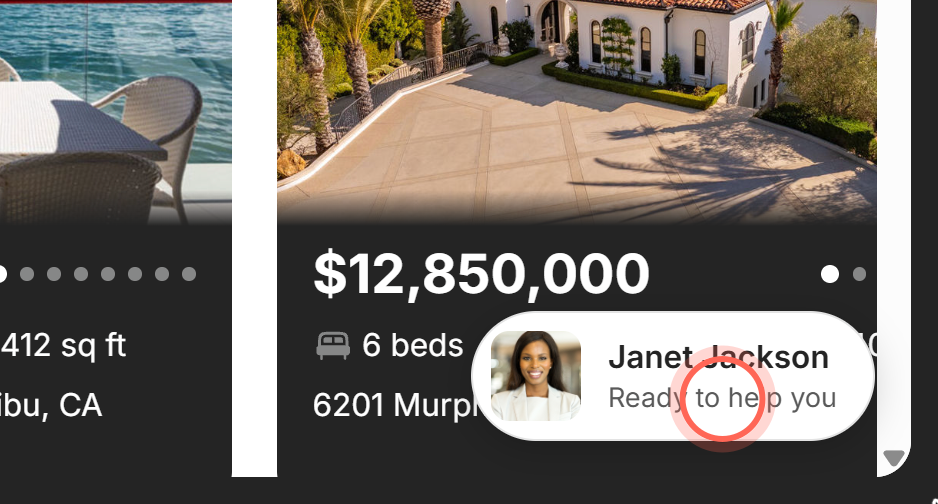
Click the bubble with your agent's photo and "Ready to help you" in the bottom right corner of any page (bottom left when Home Search shows the map). Your conversation with your agent opens: type in Enter message and send. About 30 seconds after you finish signing up, your agent sends you a first hello, so a message may already be waiting for you there.
Send your agent a message
- Click the chat bubble with your agent's photo in the bottom right corner (bottom left in Map view).
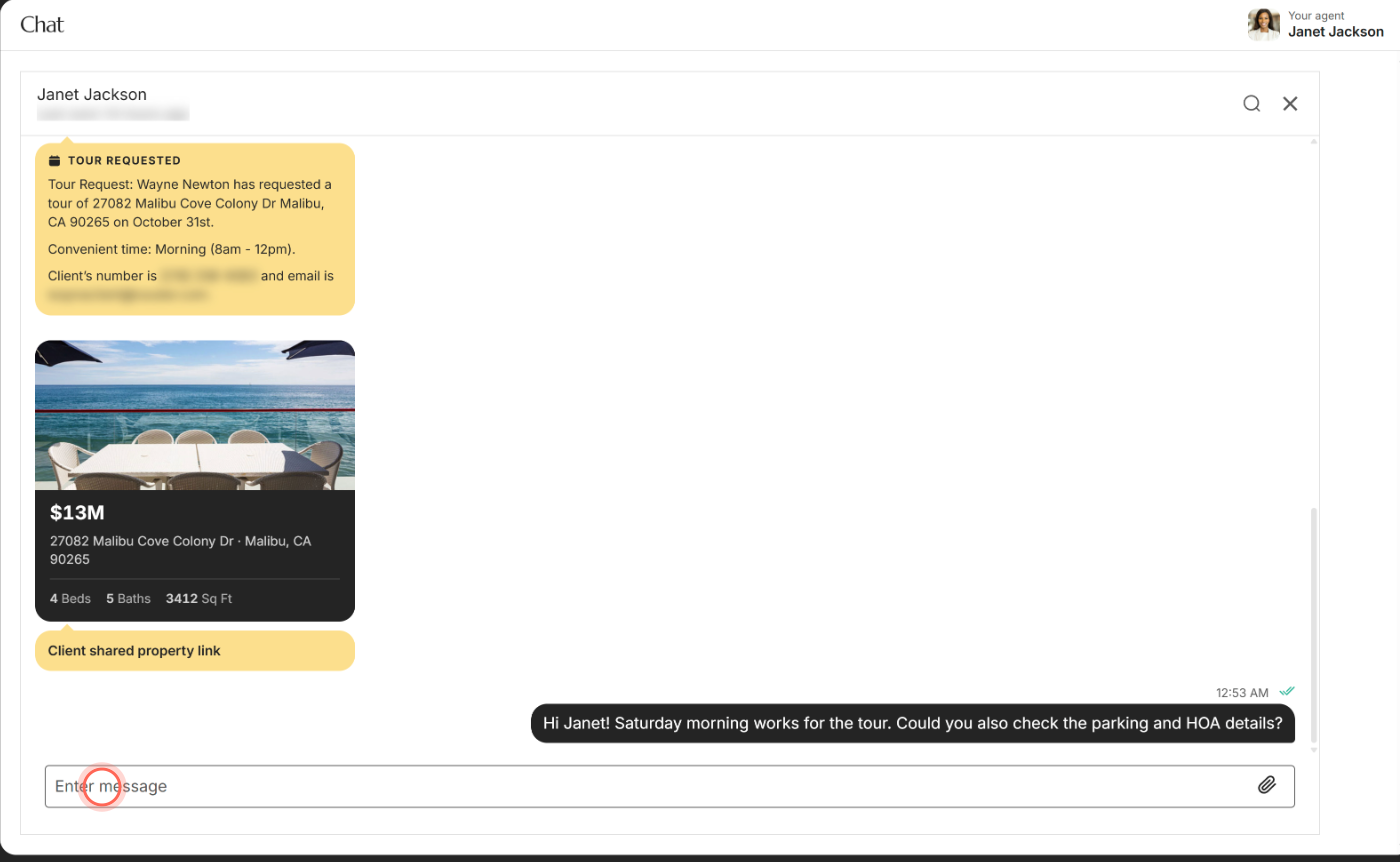
- Click in Enter message and type your message.
- Press Enter, or click the paper plane button.
Your message shows on the right with the time, and your agent gets it in their chat. If nobody has written yet, the chat says "No Messages".
On a computer, Shift+Enter starts a new line. On a phone or in the app, Enter starts a new line, so tap the paper plane to send. Messages can be up to 5,000 characters.
Send a photo or file
- With Enter message empty, click the paperclip.
- Pick the photo or file. In the app, choose Take photo or Choose from gallery.
"Uploading file..." shows until it's sent, then the file appears in the chat. You can send one file at a time, up to 25 MB.
Edit, copy or delete a message
- Point to a message you sent, then click the three dots that appear next to it.
- Click Copy, Edit or Delete.
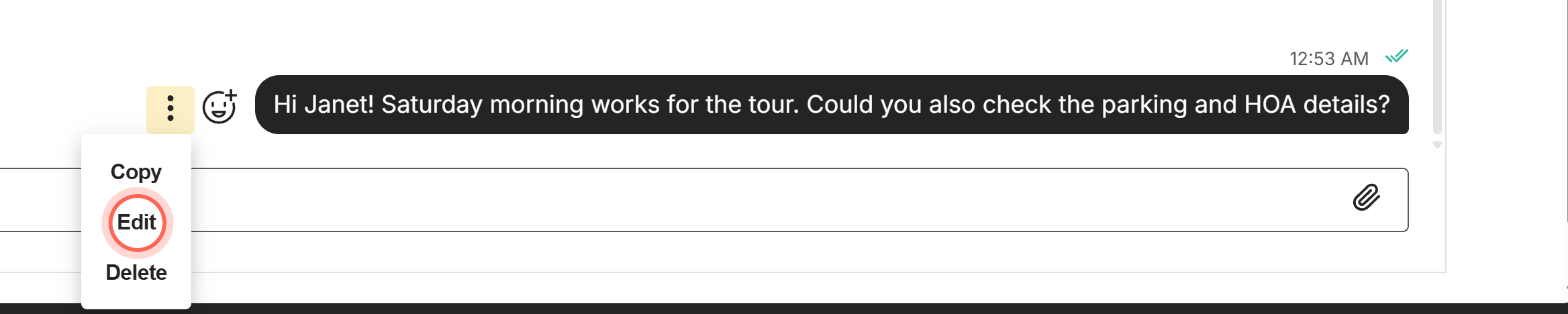
- If you chose Edit, change the text and click Save.
Copy puts the text on your clipboard, Edit updates the message in place, and Delete removes it after you confirm. Edit and Delete work on your own messages only.
Find an old message
- At the top of the chat, click the magnifying glass.
- Type a word in Search.
- Click the message you want in the results.

The chat jumps to that message and highlights it. Click the back arrow to close search, or the X next to the box to clear it.
You can also scroll up in the chat. Older messages load as you reach the top, all the way back to the start of your conversation.
Good to know
- Homes in your chat. Homes you or your agent share show as cards with the price, address, beds, baths and size. Click a card to open the home; going back returns you to the same spot in the chat.
- Tour requests. When you request a tour, it appears as a Tour requested card with the day, time and your contact details.
- Unread messages. A red number on the chat bubble shows how many messages you haven't read yet.
- Is your agent around? Under your agent's name, the chat shows "Online" or when they were last seen.
- React or leave. Point to a message and click the smiley face to react with an emoji. The X at the top takes you back to the page before the chat, such as your Dashboard, not a home you opened from a card.
FAQ
Where is the chat button?
In the bottom right corner of every page except the chat itself. In Home Search's Map view, it sits in the bottom left corner, over the map. On a phone it's a small circle with your agent's photo. It appears once you've finished signing up, including a code if your agent's app asks for one.
The chat isn't showing my newest messages or won't scroll down. What do I do?
Click in Enter message. The chat scrolls down to the newest message. If it still looks stuck, reload the page.
How do I send my agent a home I like?
On the home's page, click the chat button over the photos. The home is sent to your agent as a card right away, then your chat opens. See Ask your agent about a home.
How do I call my agent?
Click Your agent in the top right corner to see their phone number and email. See Your agent's profile.
Can I unsend a message?
Yes. Point to your message, click the three dots, then Delete. You can only delete messages you sent.
I see "Access denied". What happened?
The link you opened leads to a chat that isn't yours. The page says "Chat is only available between agent and client". Click Back to chats to go to your Dashboard, then click the chat bubble to reach your own conversation.
Still need help? Reach out to us at helpme@ruuster.com and we'd be happy to assist!