
Search Properties with Ruuster's AllFilters Feature
With Ruuster’s new all-filters search experience, called AllFilters, agents can create cross-MLS, granular property searches matching exactly what their clients are looking for – all while never leaving their CRM.
Summary
With Ruuster’s new all-filters search experience, called AllFilters, agents can create cross-MLS, granular property searches matching exactly what their clients are looking for – all while never leaving their CRM.
Searching across all relevant and available fields from nearly 200 (and counting) supported MLSs, Ruuster serves as an MLS replacement – which means team leaders and brokers now have full visibility to search creation and activity for every lead in their database.
Brokers and team leaders can also post “long tail” searches to their IDX website to generate leads interested in the same, customize filter visibility to reflect localized interest, and more in a clear, performant, and intuitive experience for agents and consumers alike.
Why AllFilters?
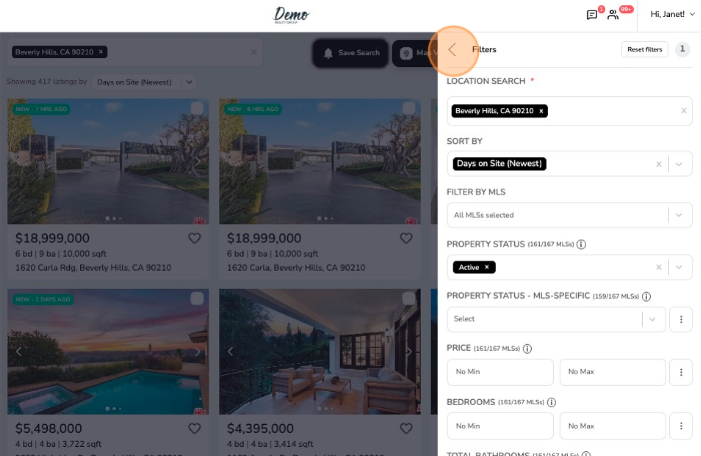
Agents and team leaders need a streamlined way to create and apply granular property alerts to match exactly the kinds of properties their clients are looking for. With Ruuster’s new all-filters search experience, called AllFilters, agents can create cross-MLS, granular property searches matching exactly what their clients are looking for – all while never leaving their CRM.
With AllFilters your agents can satisfy middle and bottom of sales funnel property search needs with ultra-customized property alerts. When you’ve connected directly with your client about there property search, the chances are high that they will have an “advanced” request – a preference for primary bedroom on main, “green” property features, a wood burning fireplace. With Ruuster’s AllFilters search experience, you can provide real value in surfacing properties that match exactly what your clients are looking for.
With Ruuster's AllFilters, you will gain:
Database Transparency. Retain search history visibility for every lead in your database, even if an agent leaves your team.
Streamlined Agent Workflows. Streamline your agent workflows via property search creation and application directly within your CRM.
Supercharged Lead Management. Provide real value through granular, customized property searches to match exactly what your clients are looking for.
MLS(s) Replacement. Replace your MLS(s) through a cross-MLS advanced search and an intuitive user interface for agents and clients.
Custom Lead Generation. Generate leads further down the funnel through unlimited numbers of granular searches embedded to your website.
Augmented Brand Awareness. Increase your brand awareness with a holistic property search experience.
AllFilters May Be Accessed in Follow Up Boss, in Your Ruuster Account, and via Embedded Search on Your Website
In order to take advanced of Ruuster's AllFilters experience you can:
Select "Home Search" on the lead detail page inside your Follow Up Boss account (so long as your Ruuster account is connected to your FUB account).
Select "Home Search" in your Ruuster account.
Any search embedded to your website.
AllFilters Can Be Utilized by Your Agents and Your Leads/ Clients
Though the experience is different for your agents and for your consumers (see the section below on "Agents and the AllFilters Experience" for more on this point), it's impactful for both, as both can perform property searches using the curated experience you provide.
Defining Some Terms: Default Filters and Advanced Filters
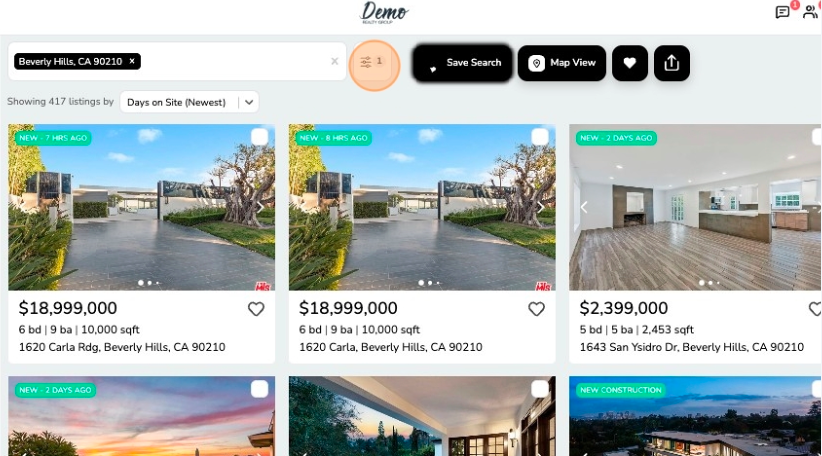
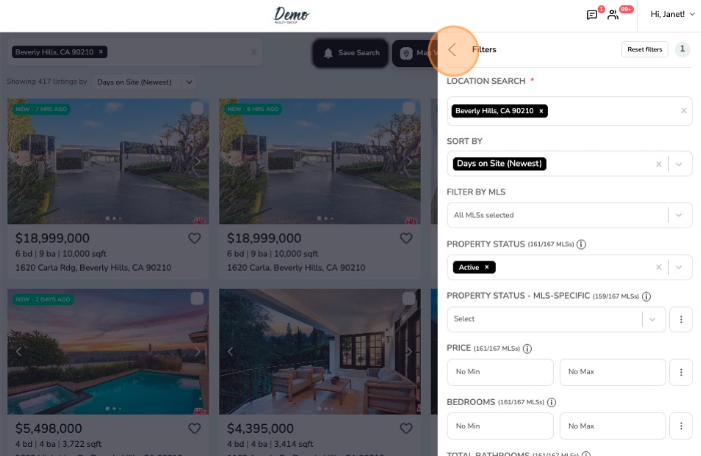
Default Filters are those that display in the filters menu, accessible to agents and consumers alike.
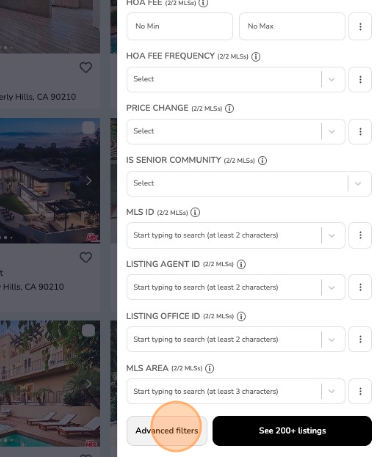
Advanced Filters are those that display in the Advanced Filters menu, accessible only to agents and not to consumers.
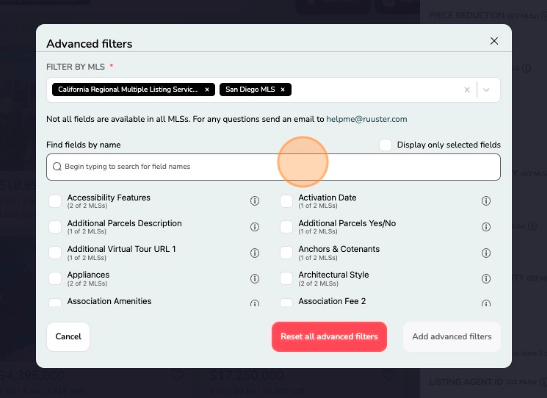
An admin can optionally make specific advanced filters to show as default filters, and vice versa. More on that below.
Account Admins Can Modify Filter Order and Default Filters for Agents and Consumers
Account admins can choose to:
Make certain advanced filters into default filters.
Make certain default filters into advanced filters.
Change the order of default filters.
Make certain default filters visible only to agents, and not to consumers.
Admins can modify the default filters by selecting "Default Filters" in the left-side navigation.
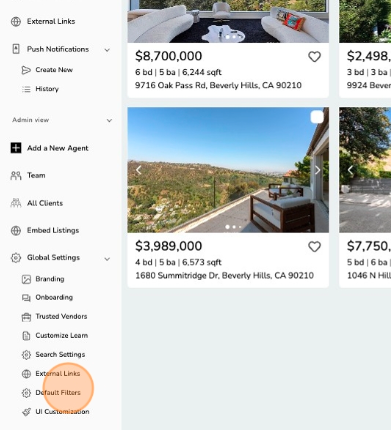
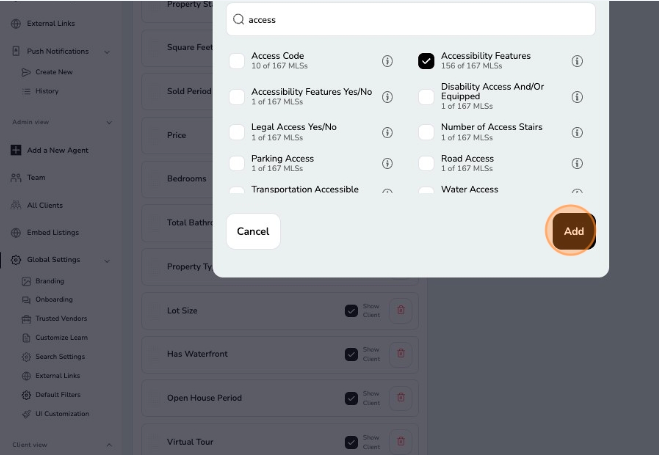
Choose to add new default filters by selecting "Add Filter" identifying the advanced filter(s) you want to add as default filters, and selecting "Add".
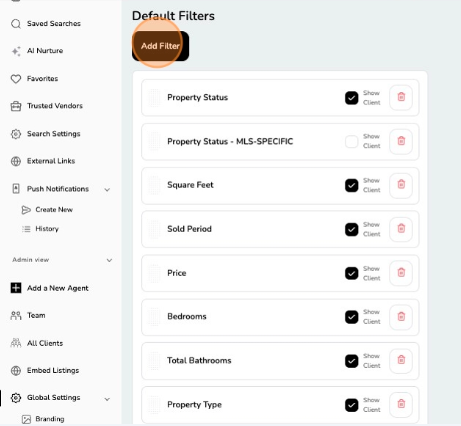
Remove a default filter by selecting the 'trash' icon next to the filter you want to remove. You can always add it back later as needed.
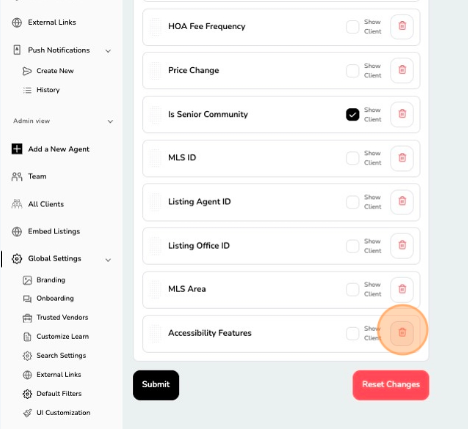
Make a filter accessible/ visible to your consumers in addition to your agents by selecting the checkbox for "Show Client".
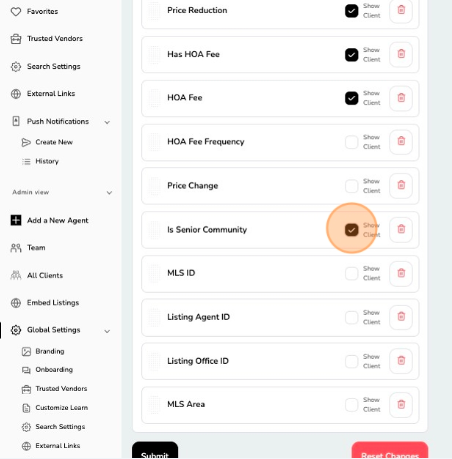
Drag-and-drop each row to change the order of the default filters.
Finally -- don't forget to select "Submit" to save your changes, or "Reset Changes" to cancel any changes.
Please note: The changes are account-wide, and will apply for all agents and consumers.
Agents and the AllFilters Experience
The agent experience with AllFilters and the consumer experience with AllFilters are different in three important and intentional ways:
Default Filter Visibility. Some default filters might display only to agents and not to consumers. (For more on this point, see the section for "Account Admins Can Modify Filter Order and Default Filters for Agents and Consumers".)
Additional Logic Options. Agents can access additional logic related to each filter, whereas consumers cannot.
Advanced Filter Visibility. Agents can access advanced filters, whereas consumers cannot.
Default Filter Visibility
Account admins can choose to make some default filters visible only to agents, and not to consumers.
For example, searching properties by MLS ID or MLS Area might be common for agents, but confusing for consumers. In this case, an admin could choose to make both of these filters default for agents, but not for consumers.
For more on how to modify default filters, see the section for "Account Admins Can Modify Filter Order and Default Filters for Agents and Consumers".
Additional Logic Options
For almost every single filter, agents can select the three ellipses button to reveal additional logic options.
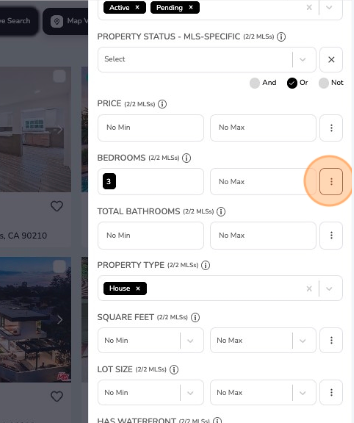
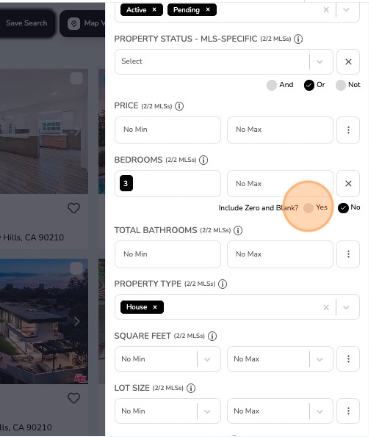
Include Zero and Blank: Yes/ No. For numeric filters, there is an option to "Include Zero and Blank".
By default, this is set to "No".
If "Yes" is selected, properties for that filter that don't have a value inputted, or have a 0 (zero) inputted, will be included in the search results.
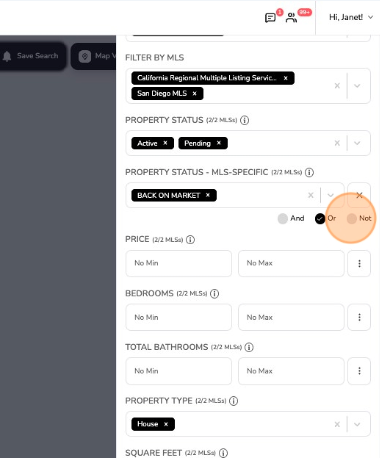
And/ Or/ Not. For non-numeric filters, there is an option to select "And", "Or", or "Not".
If "Or" is selected (the default option), it means that when multiple selections for that filter are made, results will return if a property matches at least one of those selections.
If "And" is selected, it means that when multiple selections for that filter are made, results will return if a property matches all of those selections.
If "Not" is selected, results will return only those properties that do not include the filter section(s).
Advanced Filter Visibility
Agents can access "Advanced Filters", whereas consumers cannot. This helps to streamline the search experience for consumers, while giving agents the ability to grab additional filters when needed -- a true value-add for the consumer, and agent discernment in knowing which filters can be most trusted (and which they feel less confident about).
Applying Advanced Filters to a Search
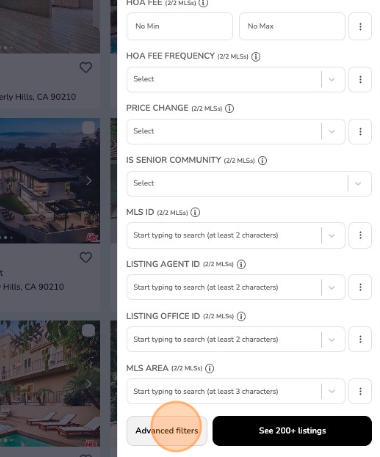
When an agent wants to find an advanced filter, simply select "Advanced Filters" at the bottom of the filters menu.
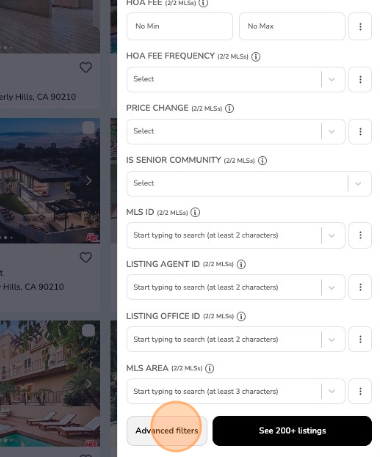
From here, you can select one or more MLSs to search in the "Filter by MLS" dropdown menu.
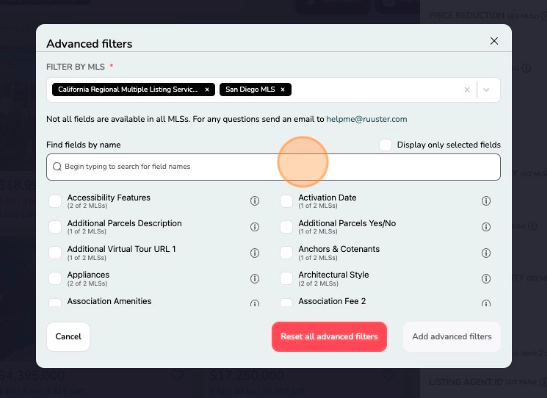
Then, search for the filter(s) you want to find in "Find fields by name" text field.
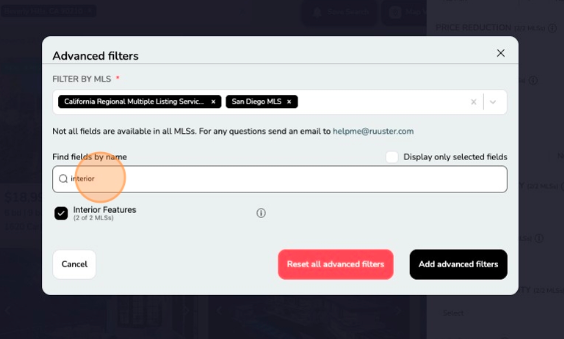
When you're ready, select to "Add advanced filters".
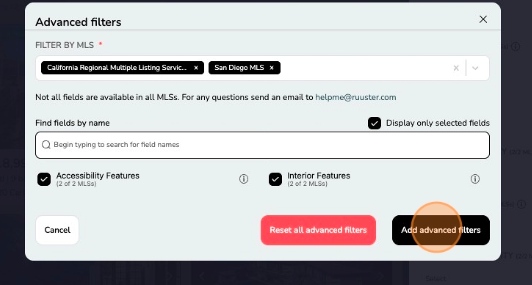
You'll see that your selected advanced filters now display at the bottom of the filters menu. From here you can add your selections from those filters.
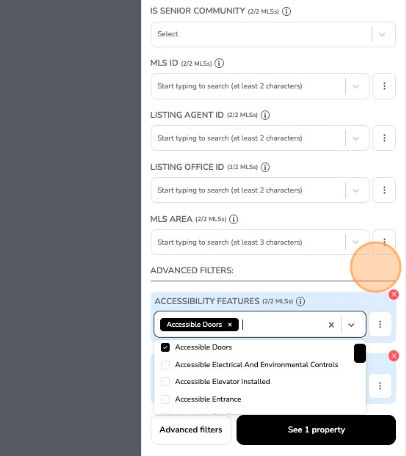
Please note: When an advanced filter has been applied to a search, a consumer will see results associated with the advanced filter, but cannot "modify" that filter.
Applying Cross-MLS Advanced Filters to a Search
One key distinctive of Ruuster's AllFilters feature is that you can run advanced filters across multiple MLSs.
That means if your client is looking for a property in areas that span across multiple MLSs, and has one or more "advanced" search criteria, you can set them up on a single search that will return results from all of the areas and with the advanced search criteria applied.
With that in mind, for every default and advanced filter there is a tooltip to display which MLS(s) the filter is available in. That way, you can for example apply the filter across multiple MLSs if it's available in all MLSs, or decide to create separate searches if the filter is only available in some of the MLSs but not in others.
Embedding AllFilters-Created Searches to Your Website and Generate New Leads with Quick-Share Links
You can also embed "long tail" AllFilters-created searches to your website, or create Quick-Share links to generate leads interested in more niche property searches.
For more on embedding AllFilters searches to your website, see: /agents/embed-ruuster-listings.
For more on generating leads with Quick-Share links, see: /agents/generate-new-leads-with-quick-share-links.
Other Points of Note
When running a new search, all connected MLSs will be searched by default. Agents can still modify which MLSs they wish to search within.
When running a new search, the "Active" property status will display by default. Agents and consumers and still modify which property statues they wish to search for.
The filter for "Property Status - MLS-Specific" pulls the actual name of a status from the connected MLS(s). For example, if your MLS sub-defines a "Pending" property status as "Pending - Accepting Backup Offers" and "Pending - Contingent", simply select the "Pending" property status, then optionally select whichever sub-options you want from the MLS-specific filter.
The filter for "Primary Bedroom on Main" (sometimes "Master on Main" or another variation) might be a standalone filter, though sometimes included in a filter for "Interior Features" (or another variation).
FAQs
I've been a Ruuster client from before AllFilters was a feature. What does this mean for my team? What about all the saved searches we've already applied to our leads?
The AllFilters feature is available to all Ruuster clients, regardless of how long you have been with Ruuster.
All of the searches you have created in the old filters experience will migrate to "new" searches utilizing the AllFilters feature, with no action required on your part.
What happened to the old "For Sale" and "New" property statuses?
In the past, the "For Sale" property statues incorporated both "Active" and "Coming Soon" statuses as a single option. In AllFilters, agents and consumers can select "Active" and/ or "Coming Soon" as separate or combined options.
In the past, the "New" property status was defined utilizing a fairly complex internal formula. In AllFilters, an agent may instead select the filter for "Days on Market", and/ or utilize the new "Sort By" option for "Days on Site (Newest)".
This seems like a big change. Did you test it?
The AllFilters feature was a massive undertaking, and we hope will have a massive impact in your business.
Before we enabled the feature for all clients, we did both an "alpha" and multiple rounds of a "closed beta" with dozens of clients. During this period we resolved some issues that arose, and given the time we had and the feedback we received, we also made multiple feature enhancements even before full release.
What did the clients who were part of the alpha and closed beta think about AllFilters?
Overall we were very pleased with the results from the alpha/ closed beta of AllFilters, not only in terms of the data but also in terms of client reaction. Below are some select quotes from our pre-release testers:
"revolutionary new feature that's about to transform how real estate teams operate."
"When clients need specific features, our agents deliver results instantly. No more juggling platforms, no delays, no missed opportunities. The agents who lean in to these features will have a massive advantage. Those who don’t will miss out."
"Oh my gosh, I LOVE the search ability specifically around bathrooms now. This is going to help me really focus on the right stuff as long as I use it properly (the requirement to check results is going to be mandatory, btw). With great ‘POWER’ comes great ‘Responsibility’ and we were just handed the ‘POWER’."
"We've been in a ton of betas and this is the smoothest thus far."
"total game changer for our agents"
"It was a wait to get it but well worth it now."
I'm looking for a specific advanced filter but can't find it. What should I do?
The AllFilters feature displays all relevant and available filters from all connected MLSs. While we're not aware of any issue it's possible something got missed, in which case you can message our team helpme@ruuster.com with the MLS name, filter name, and 2-3 properties that should return for the filter. With that information in hand, we can work with our data provider to gain access to the filter and make it available to you within Ruuster.
I've run a filter in Ruuster and the results don't match what I'm seeing in the MLS. What should I do?
The AllFilters feature was a massive undertaking, and while we're not aware of any issue, it's possible there could be a data mapping issue related to a filter. If you're comparing a filter in Ruuster to the same filter in your MLS and getting different results, just message our team helpme@ruuster.com with the MLS name, filter name, and 2-3 properties that are returning in one search result set but not in the other. With that information in hand, we can work with our data provider to gain access to the filter and make it available to you within Ruuster.
Conclusion
We hope that Ruuster's AllFilters is helpful for you and your team. Enjoy!