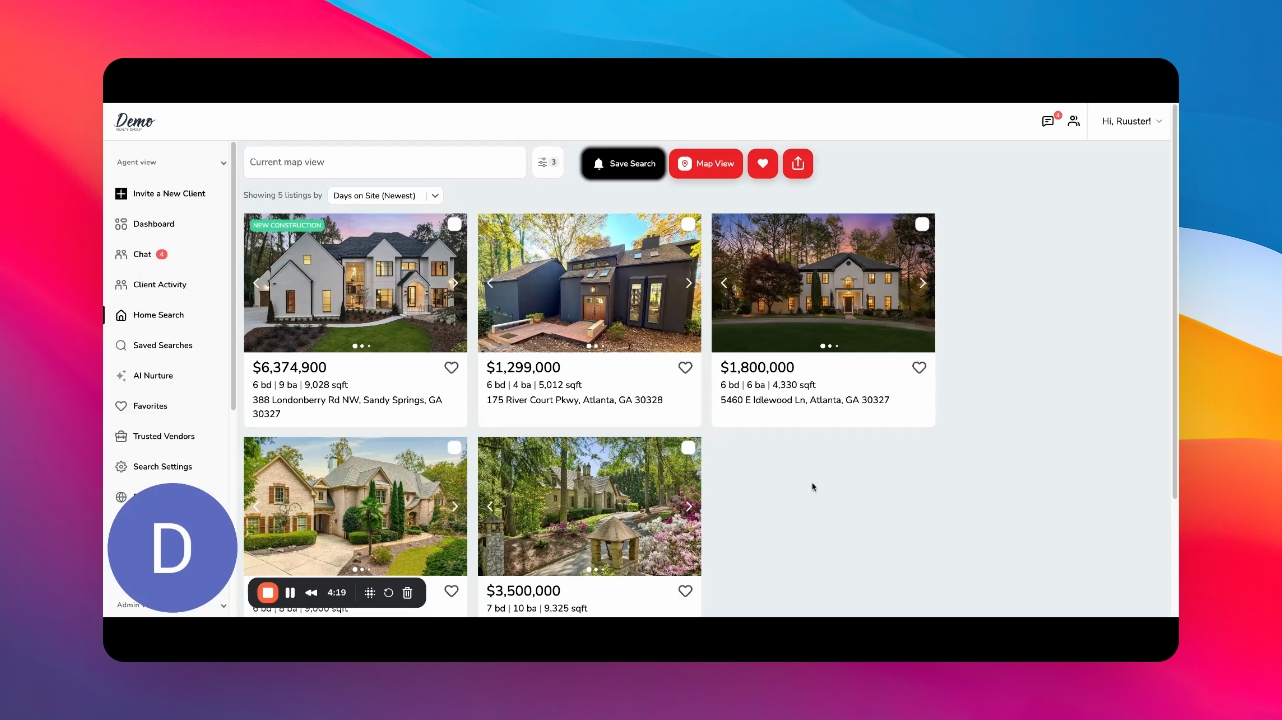
How to Use All Filters when Searching
Searching for properties using advanced filters
TL;DR
Let's Do It Together!
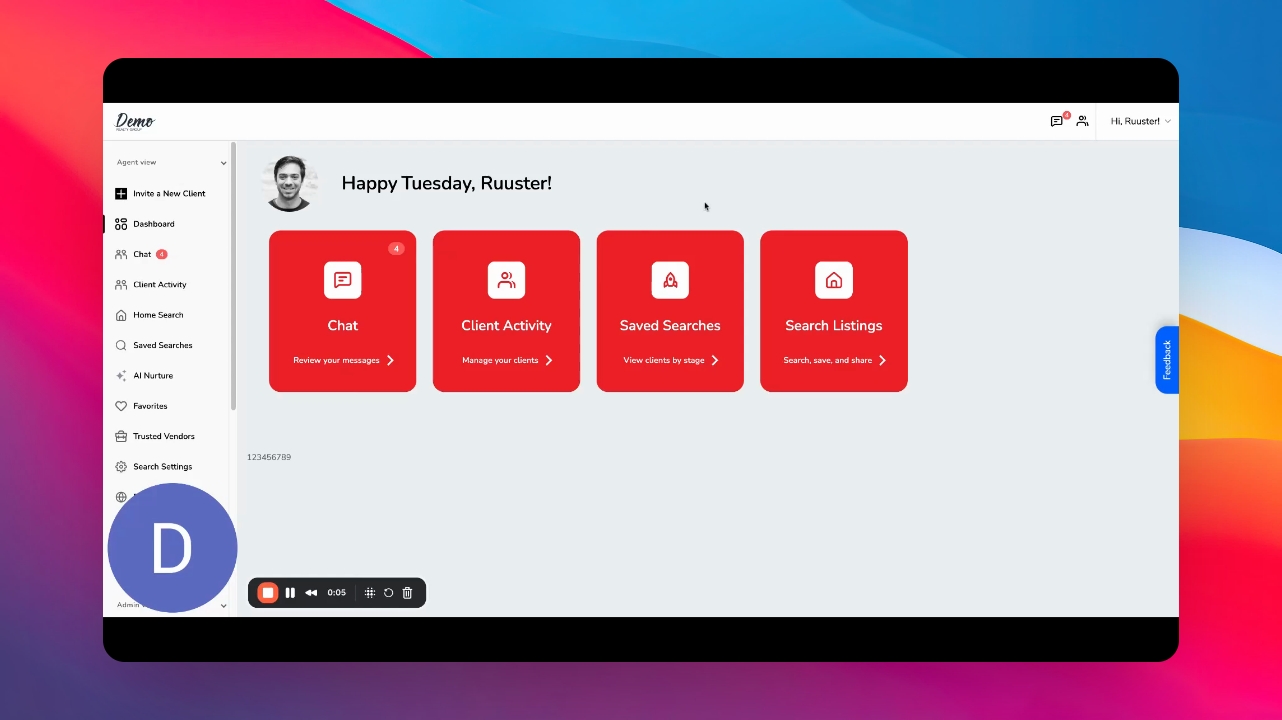
Step 1: Start on Search Listings
Click on the search listings button to begin.
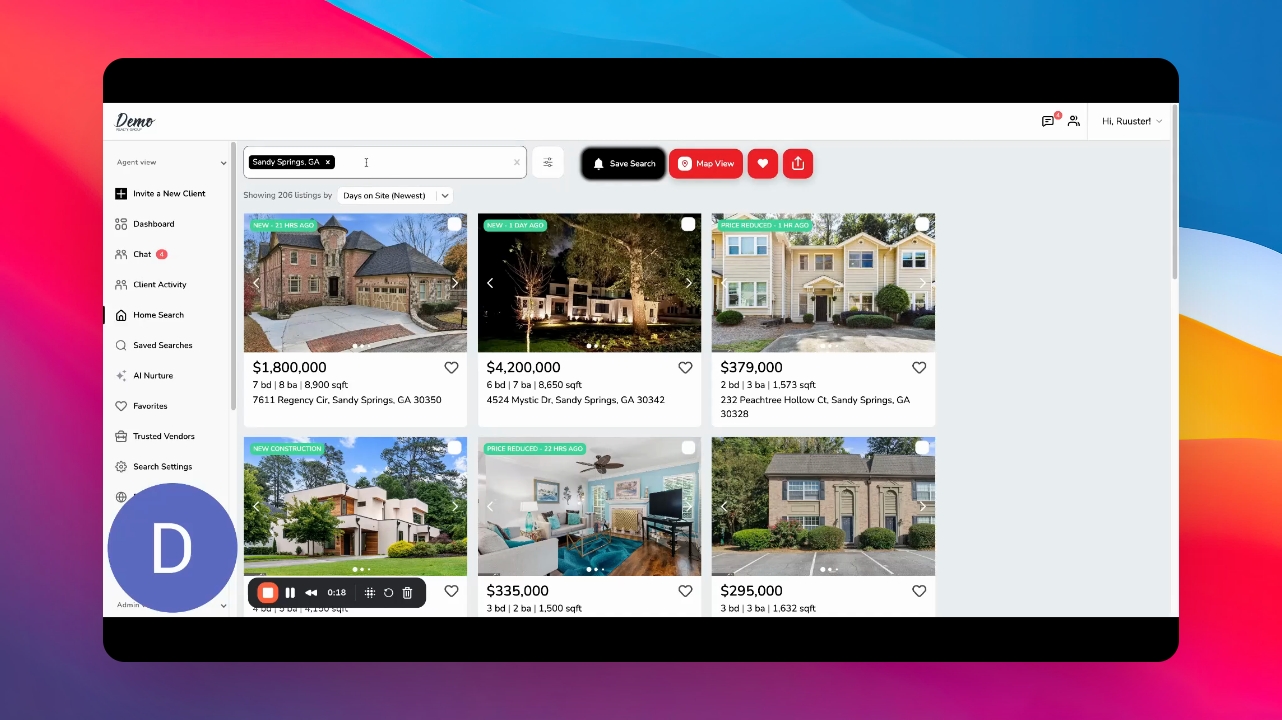
Step 2: Enter Location
Input a location such as a city, county, or zip code.
You can enter multiple locations.
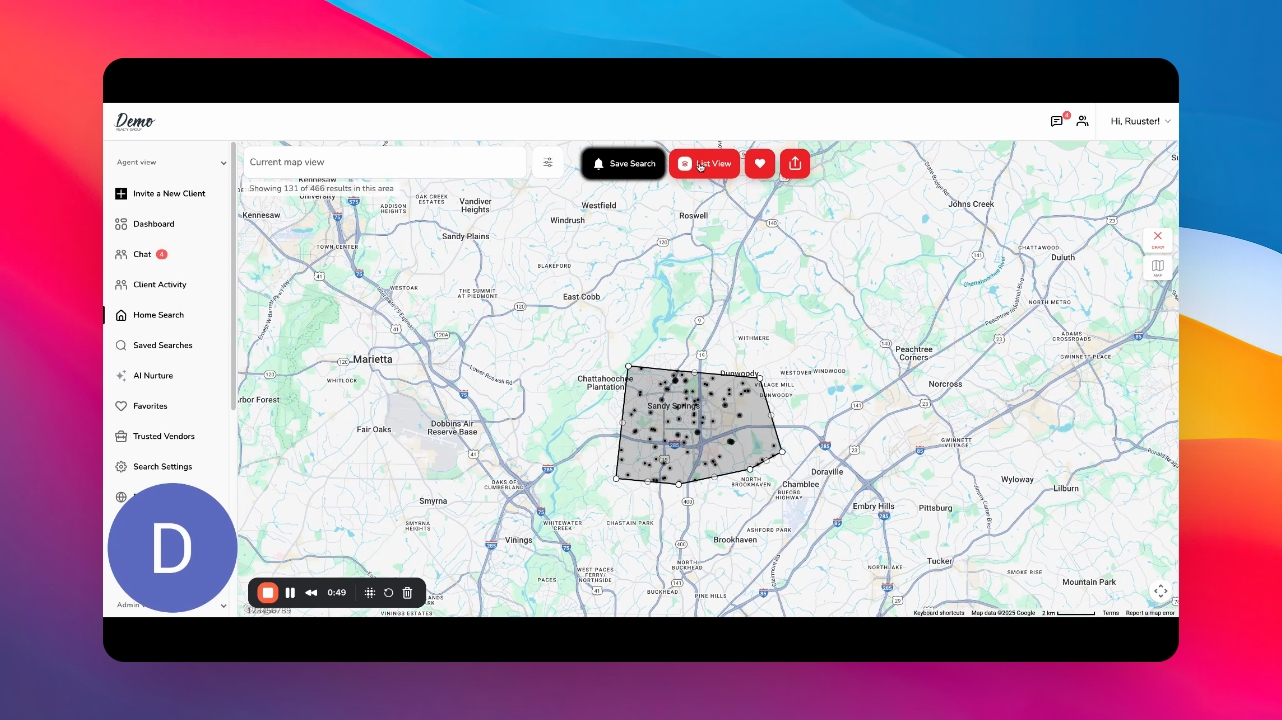
Step 3: Draw on Map
Optionally, draw on the map to refine your search area.

Step 4: Access Filters
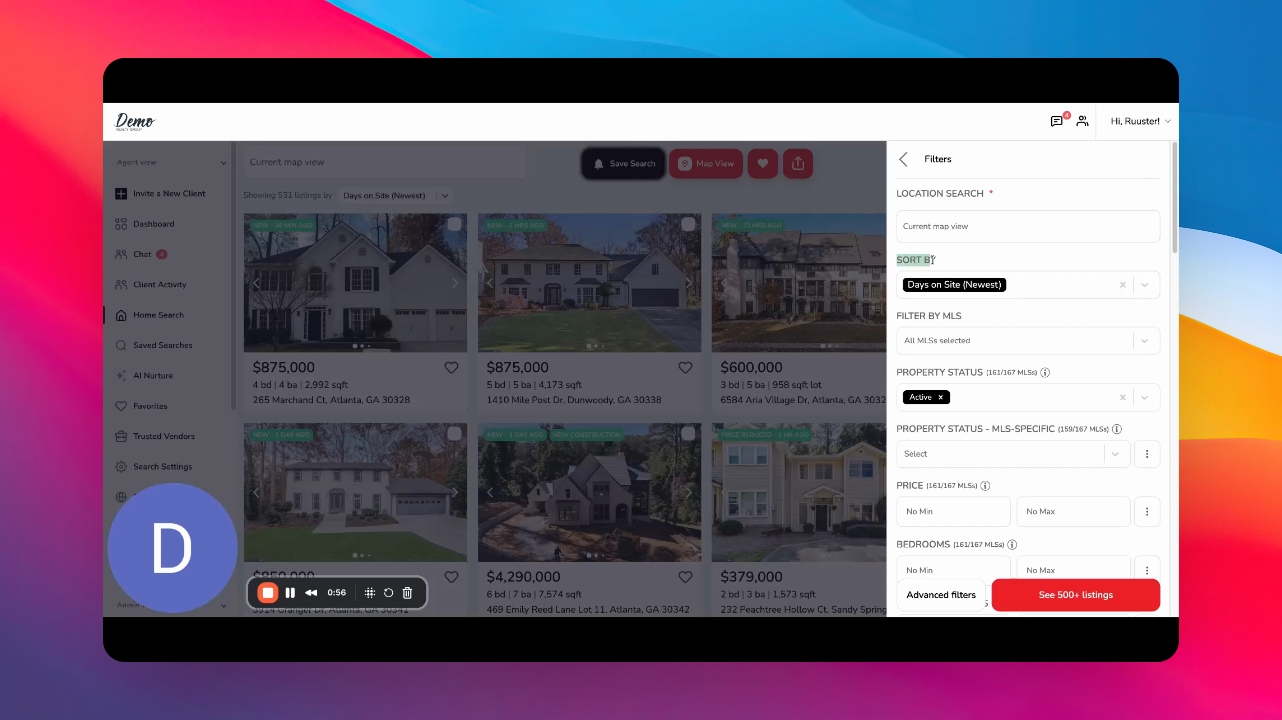
Click on the filters button to view sorting options.
Step 5: Choose Sort Options
Select how you want the results to be sorted.
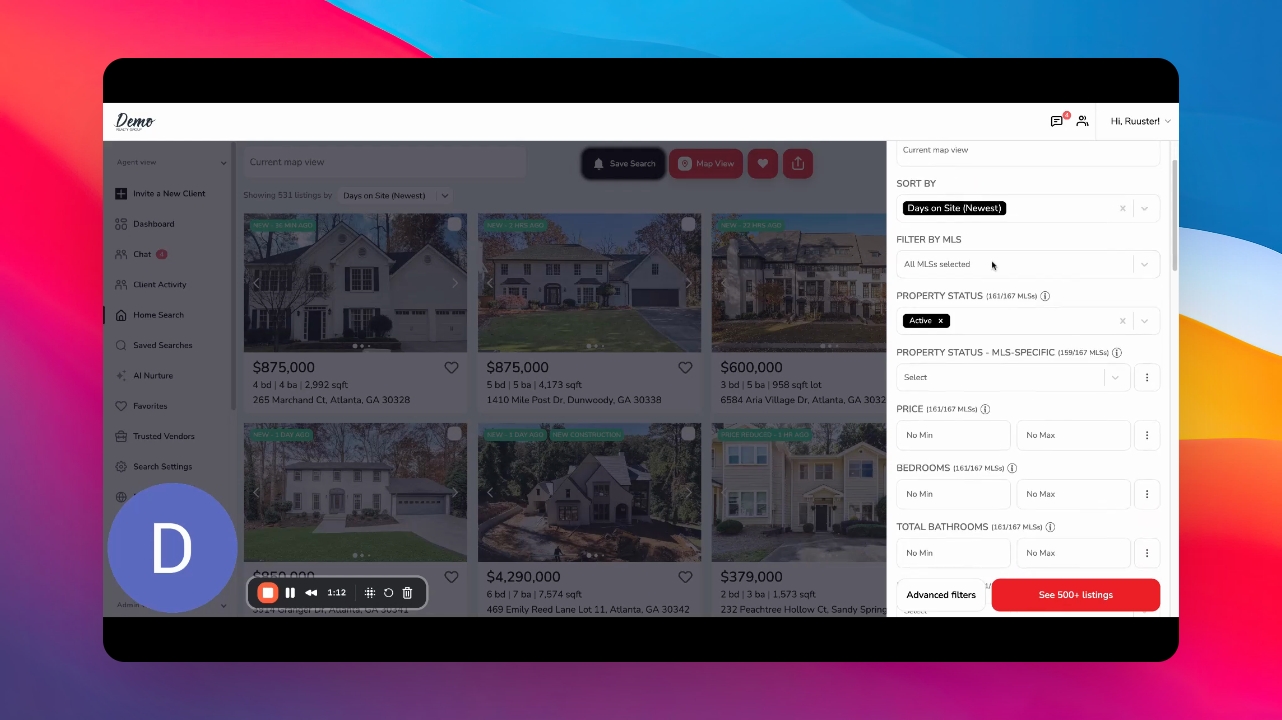
Step 6: Filter by MLS
Choose to filter results by specific MLS options.
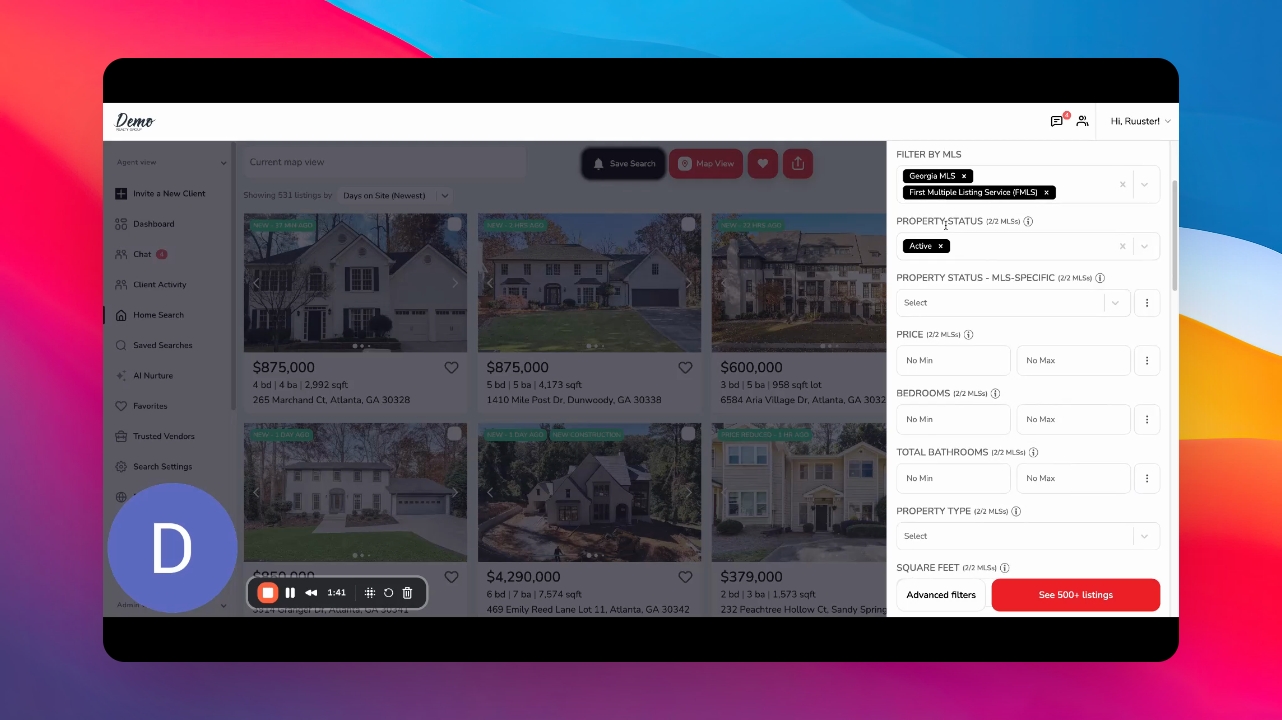
Step 7: Set Property Status
Filter results based on property status, including MLS specific options.
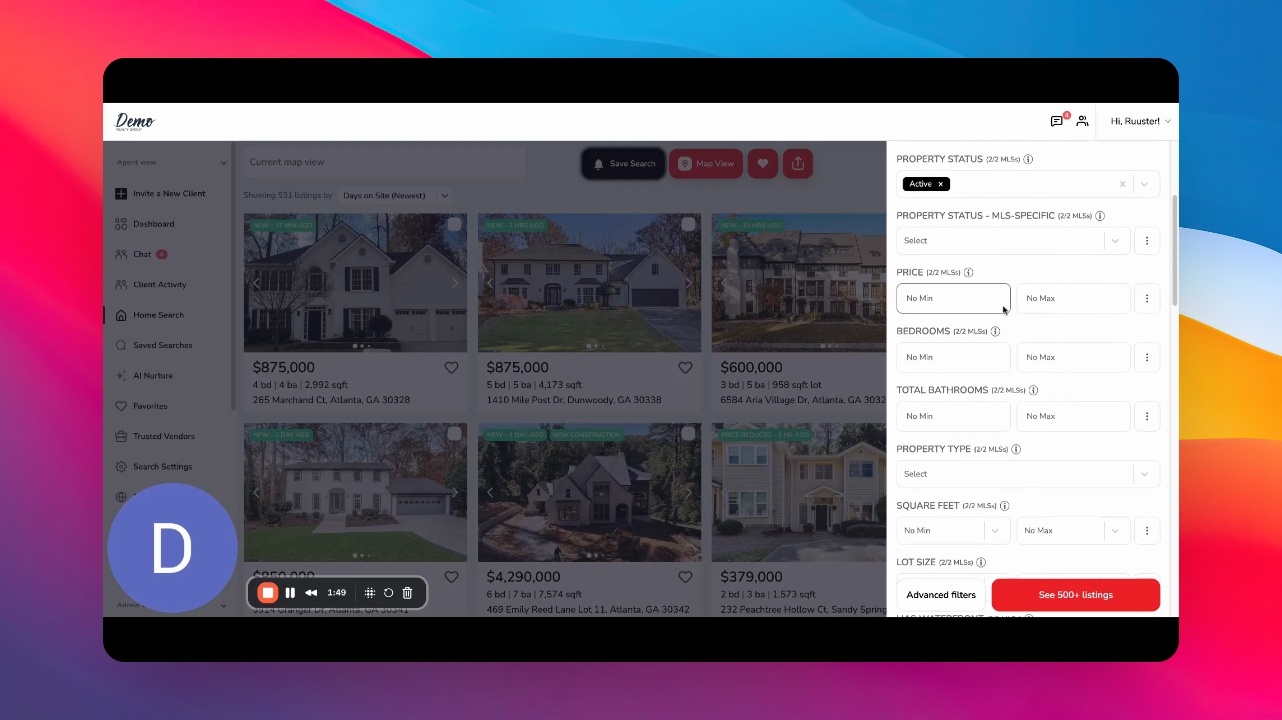
Step 8: Apply Additional Filters
Use additional filters for bedrooms, bathrooms, and open house periods.
Step 9: Use Advanced Filters
Click on Advanced Filters for more specific search options.
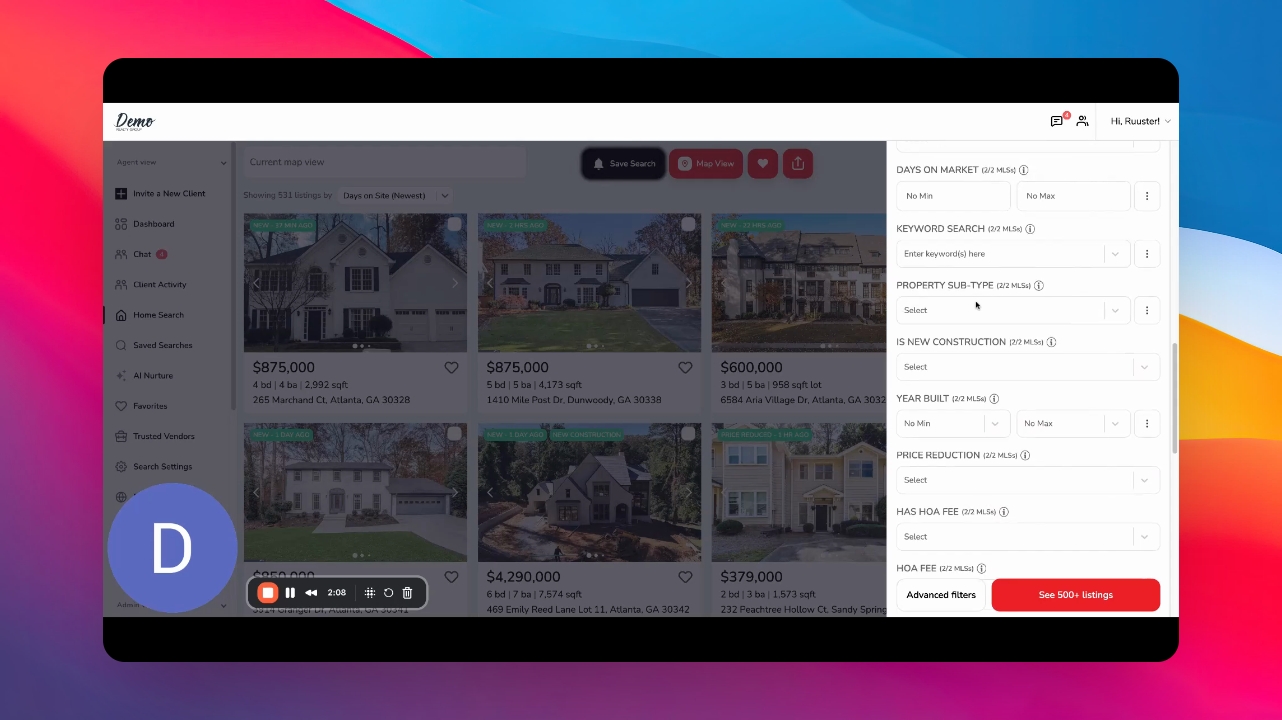
Step 10: Select Interior Features
Choose specific interior features to filter your search.

Step 11: Add Advanced Filters
Click Add Advanced Filter after selecting features.

Step 12: Filter by School District
Specify a school district to filter properties.
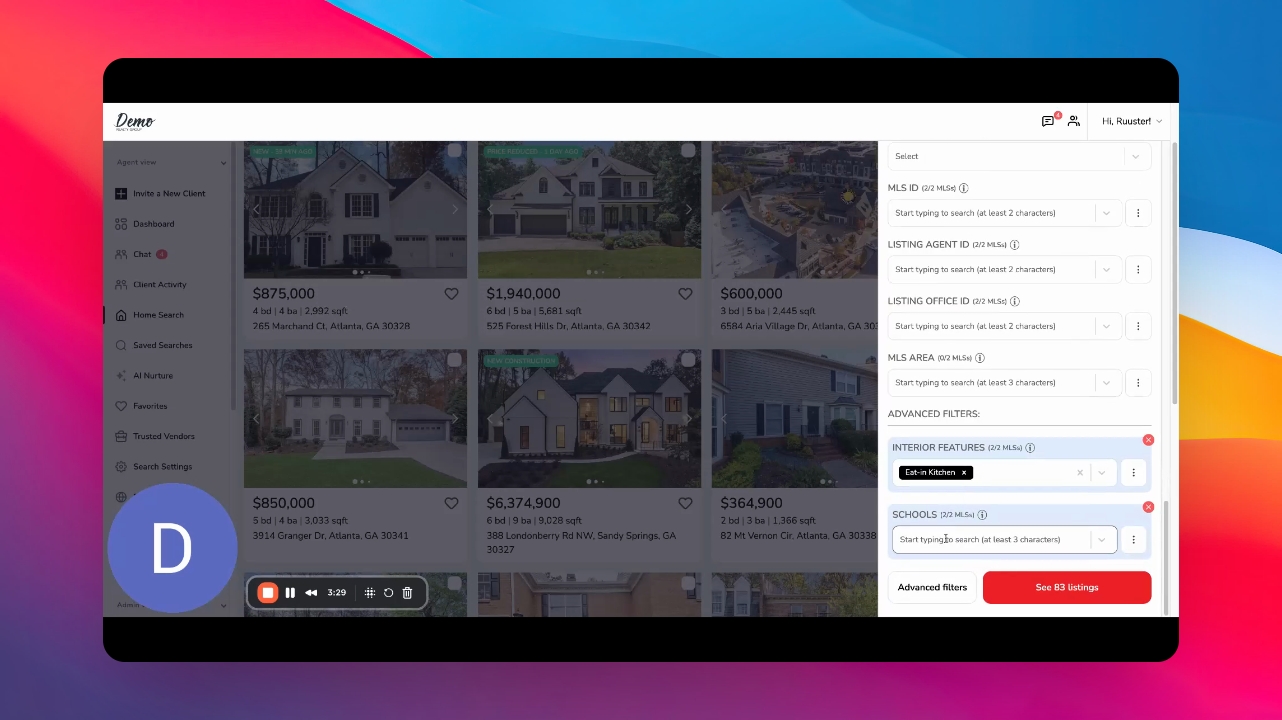
Step 13: View Filtered Listings
Click see all properties to view the filtered listings.
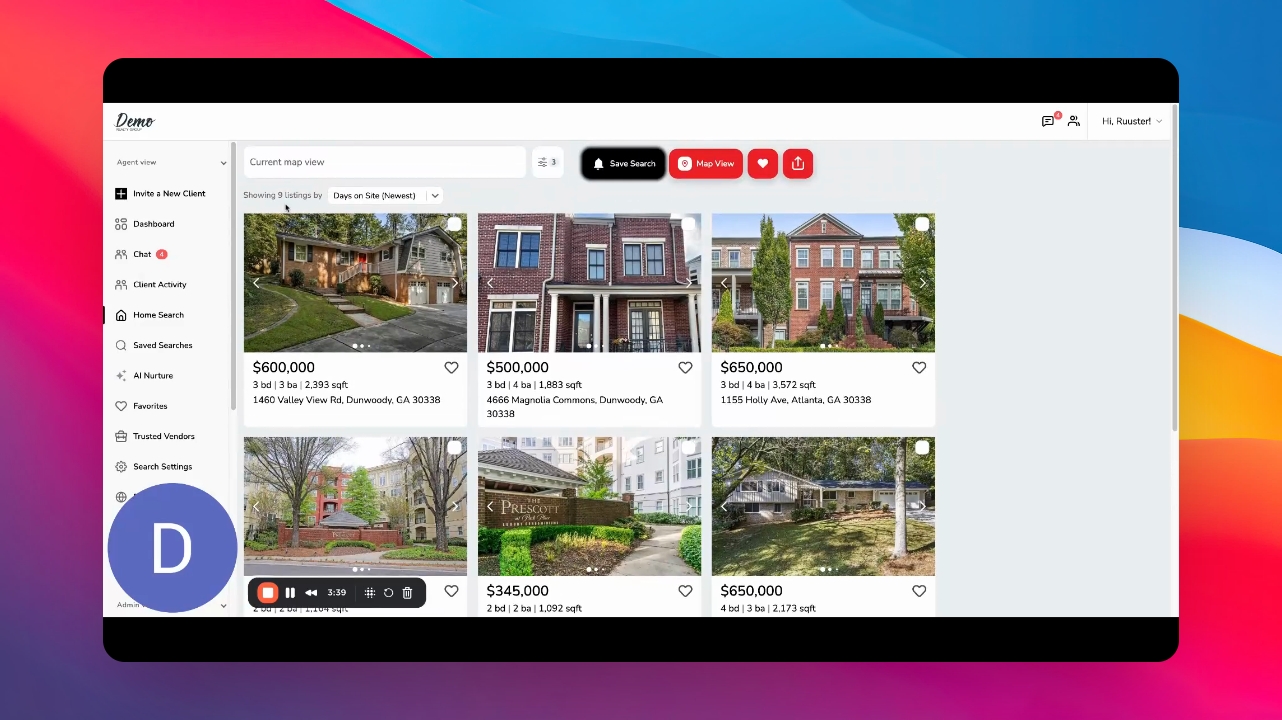
Step 14: Set Up Automatic Alerts
Click on Save Search to set up property alerts.