
Find local pros on Services
Using Ruuster 1.0? Read the 1.0 version of this article.
Find lenders, inspectors and other pros your brokerage recommends on Services, and text, call or email them.
Services lists the lenders, inspectors and other professionals your agent and brokerage recommend. Pick a category, then use the Contact menu on a card to text, call or email someone, or ask for an email introduction.
Find a professional
- In the sidebar, click Services. On a phone, tap Services in the bottom bar.
- If you see area tabs at the top, click the one you need.
- To narrow a long list of categories, type in Find a service.
- Under What do you need help with?, click a category, such as Inspection.
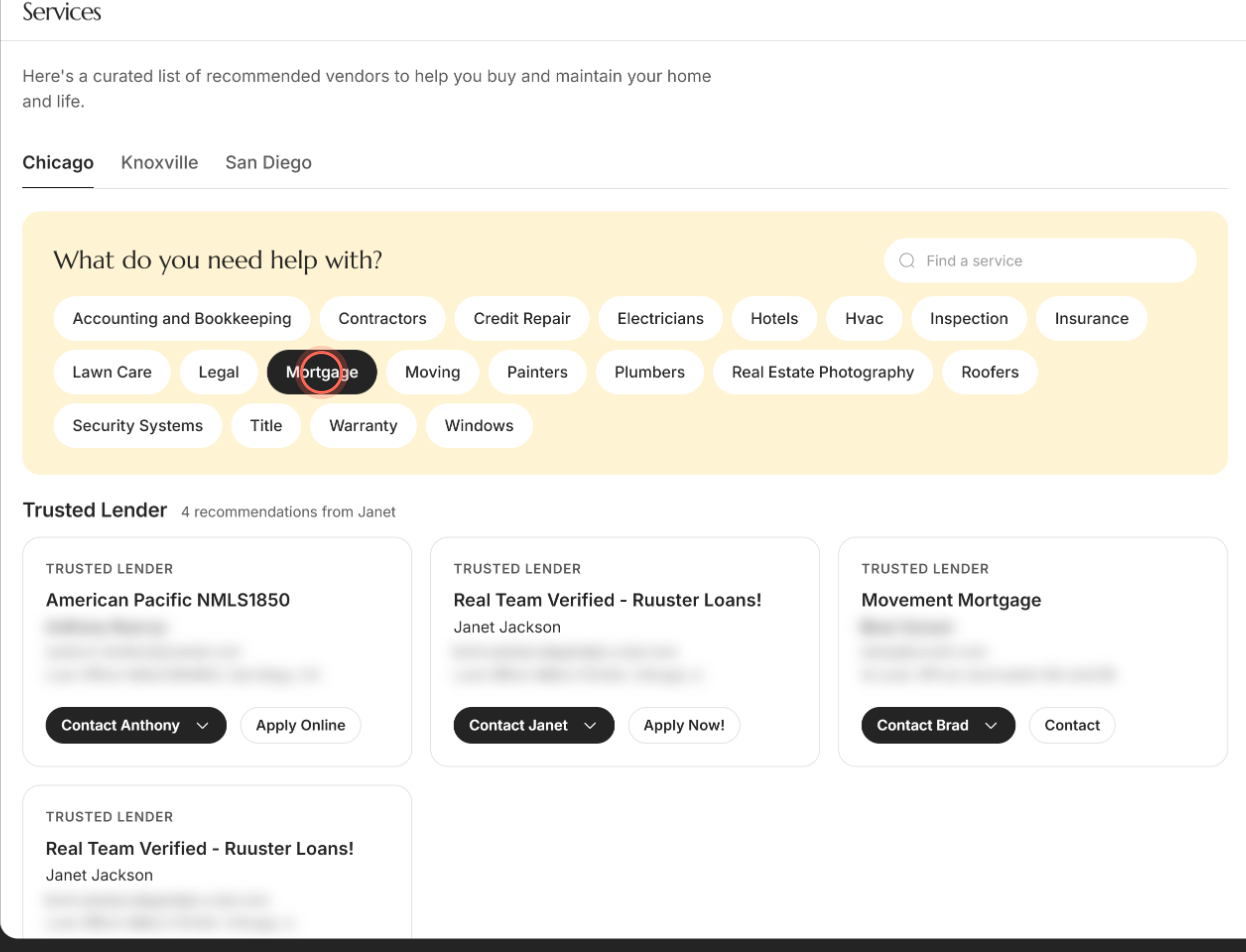
The category's professionals appear under a heading for that kind of pro, such as Trusted Lender for Mortgage or Trusted Inspector for Inspection. A count sits next to it, such as "3 recommendations from" and your agent's first name. Each card carries the same label, then the company, the person's name, email, title and location, and any note from your brokerage.
Services opens on mortgage lenders when your brokerage lists any. If nothing matches what you type in Find a service, click Clear search to see every category again.
Text, call or email a professional
- On Services, click Contact followed by the professional's first name on their card.
- Click Text, Call or Email.
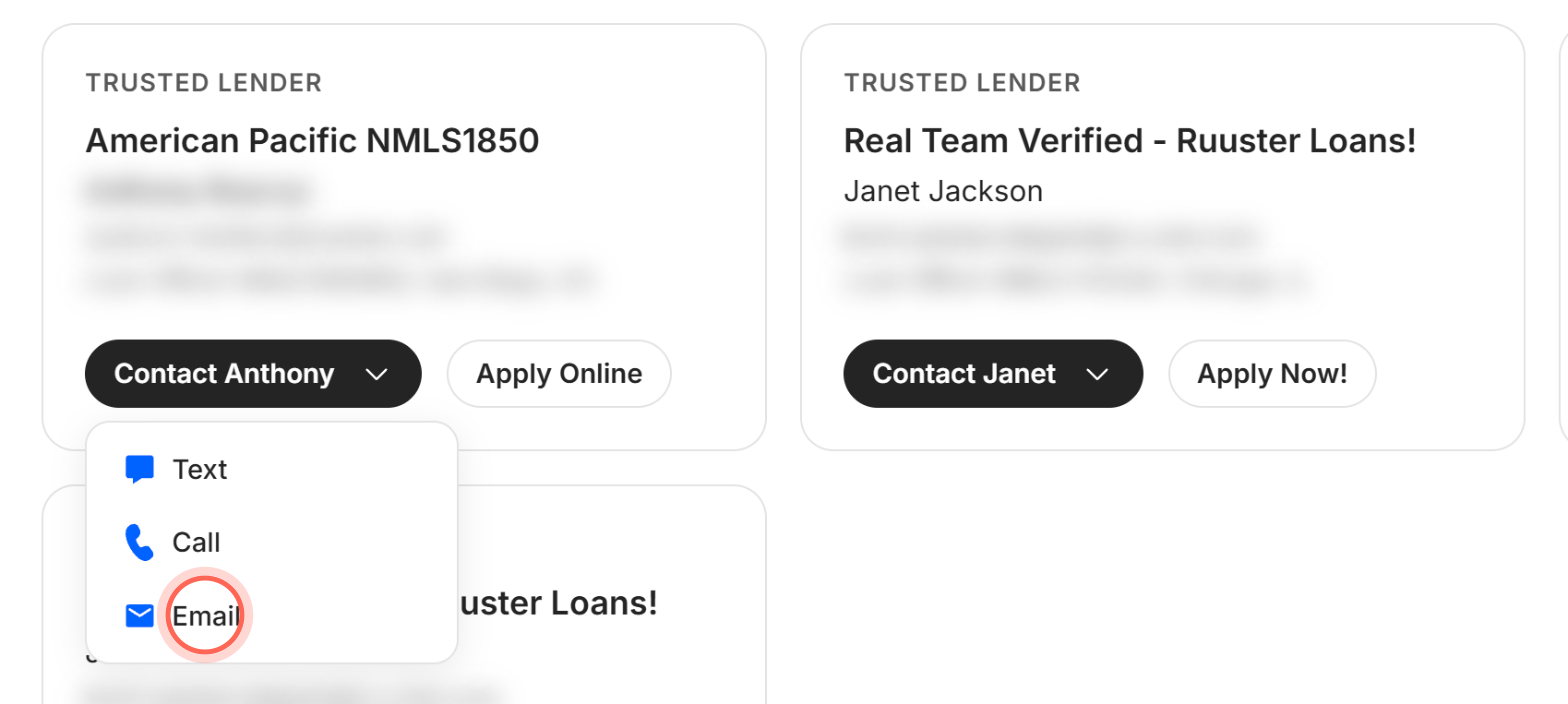
Text and Call open your device's messaging or phone app. Email opens your mail app with a short introduction already written, the subject "Referral from" and your agent's name, and your agent copied. Look it over and send it.
Ask for an email introduction
- On Services, click Contact, the outlined button next to the menu on a card.
You see "Your contact request has been sent" and "You will be contacted shortly." You and the professional each get an email introducing you to each other, with your agent copied.
If that button has a different name, such as Apply Online, it opens the professional's website in a new tab instead.
Good to know
- Text and Call need a phone number. They show only when the professional has one. Email is always there.
- A message instead of cards. Some tabs show a note from your brokerage in place of a list, such as asking you to contact your agent. The category pills still work, but each one shows the same note, so ask your agent for names. If the page says "Coming soon!", your brokerage hasn't added anyone yet.
- Disclosures. Lenders may pay to be listed, and you can check their license at nmlsconsumeraccess.org. Everyone listed works independently of your brokerage and agent.
- If something doesn't load. You see "We couldn't load these vendors." or "We couldn't load Services." Click Try again.
FAQ
The email or call button doesn't work. What do I do?
These options hand off to your device. On a computer, Call and Text need a calling or messaging app, and Email needs a mail app set up. Try from your phone, or copy the email address from the card.
Can the app introduce me to a mortgage lender?
Yes. On the lender's card, click the outlined Contact button. You and the lender both get an introduction email, with your agent copied. If the button reads something else, like Apply Now!, it opens the lender's website.
Do I have to use these professionals?
No. They're recommendations to save you time. You're free to work with anyone you choose.
Does my agent know I reached out?
Your agent is copied on introduction emails and on emails you start from Email, so they can follow along.
I can't find the category I need. Only categories with at least one professional show up. Ask your agent for a name in chat.
Still need help? Reach out to us at helpme@ruuster.com and we'd be happy to assist!