
All Ruuster Custom Fields in Follow Up Boss and SureSend
With Ruuster’s custom fields inside of Follow Up Boss and SureSend, you can get faster lead context, utilize quick-links to relevant items inside of Ruuster, ensure your agents are following SOPs, leverage the fields as merge fields in lead communications, and more.
Summary
With Ruuster’s custom fields inside of Follow Up Boss and SureSend, you can get faster lead context, utilize quick-links to relevant items inside of Ruuster, ensure your agents are following SOPs, leverage the fields as merge fields in lead communications, and more.
What Are Custom Fields?
Custom fields provide helpful, supplementary information about your lead and how best to manage them.
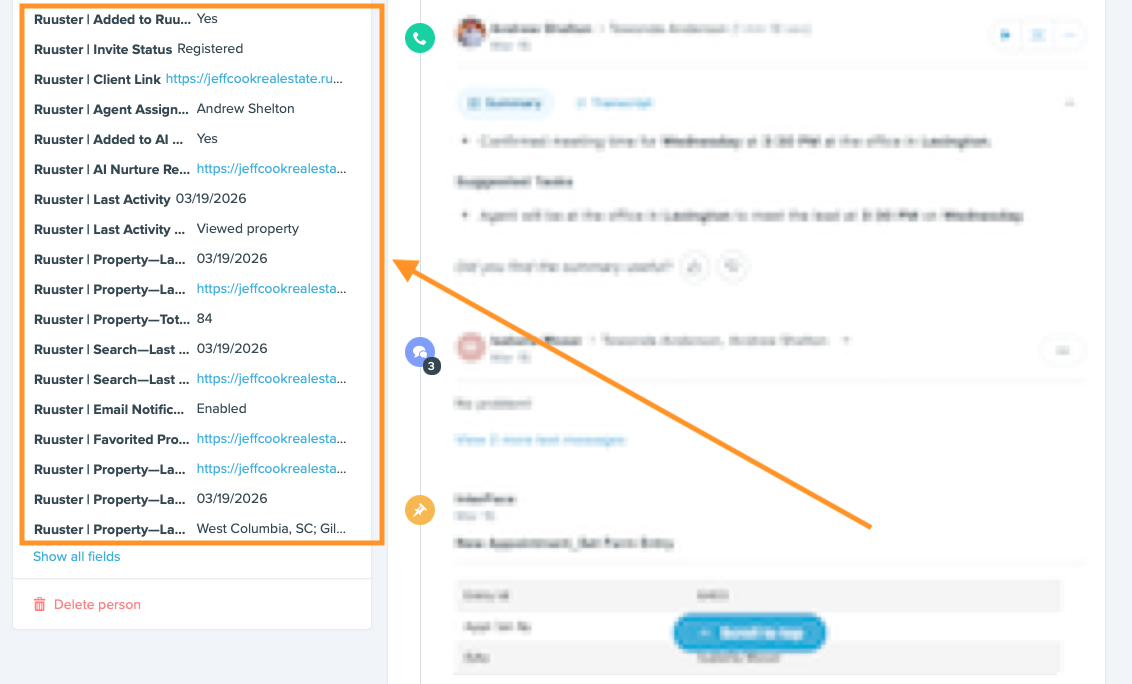
Inside of the lead detail page in Follow Up Boss and SureSend, Ruuster will populate key information -- the custom fields -- to help you get faster lead context, quick-link to relevant aspects of the client detail page inside of Ruuster, and leverage the information as merge fields in your lead communications.
The custom fields are visible on the left sidebar of the lead detail page inside of Follow Up Boss and SureSend:
What Ruuster's Custom Fields in Follow Up Boss and SureSend Can Do for You
Ruuster's custom fields in Follow Up Boss and SureSend can help your lead management and agent accountability in multiple ways:
Faster lead context for better lead management. The custom fields will give quick-links to relevant information inside of the Ruuster, e.g., favorited properties.
Better client management on the go. The FUB mobile app does not include app widgets, which requires agents to manually open and search for a client inside of their Ruuster mobile app. With custom fields, an agent can click a link from within the FUB mobile app to open directly to the desired context inside of Ruuster, instead.
Surface high-intent leads to take next-step actions. With Ruuster's custom fields in Follow Up Boss and SureSend, agents and team leaders can create smart lists based on high-intent actions surfaced from within Ruuster -- meaning that fewer opportunities will slip through the cracks.
More customized automated client communications. Ruuster's custom fields can be utilized as merge fields, for example, you'll be able to set up automated communications for "I saw you were searching for homes in {Ruuster | Search—Last Run Link}" or "Are you still interested in {Ruuster | Property—Last Viewed Link}?".
Leverage Ruuster data with third-party lead management systems. The third-party systems you’re already using can leverage Ruuster-provided fields inside of FUB and SureSend for increased agent accountability and better lead communication.
You Will Need to Be Connected to Follow Up Boss and/ or SureSend to Utilize Custom Fields
In order to utilize custom fields posted from Ruuster, you will first need to connect your Ruuster account to your Follow Up Boss and/ or SureSend Instructions for doing so are here: /agents/integrate-follow-up-boss-with-ruuster.
All of the Custom Fields that Ruuster Sends to Follow Up Boss and SureSend
Below is a chart of all the different custom fields that Ruuster sends to Follow Up Boss and SureSend.
Please note: The field "Ruuster | Added to Ruuster" will display regardless of whether the field is populated or not; the rest of the fields will display by default if/ when there is a value associated with it.
Field Name/ Label
Description
Ruuster | Added to Ruuster
A "Yes" or a "No" regarding whether the lead/ client has been added to Ruuster. This allows an agent/ admin to quickly see if the lead/ client should be added to Ruuster or not.
Ruuster | Invite Status
Registered = The lead/ client has registered for an account with Ruuster.
Not Registered = If the lead/ client has been invited to Ruuster but not registered, or has been added to Ruuster but not technically “invited” or registered.
Ruuster | Client Link
A quick-link to view the client in the Ruuster admin. This link will open in a new tab to the lead’s profile in Ruuster.
Ruuster | Agent Assignment
The name of the agent to whom the lead is assigned inside of Ruuster.
Ruuster | Agent Landing Page
A URL to the assigned agent’s landing page. The URL will display here only if: Ruuster | Added to Ruuster = No or Ruuster | Invite Status = Invited.
If the agent assignment in Ruuster does match the agent assignment in FUB, we populate the agent-specific registration landing page.
If the agent assignment in Ruuster does not match the agent assignment in FUB, we will populate here a “general” registration link.
Ruuster | Added to AI Nurture
If the client/ lead is assigned an AI Nurture search, this field = Yes. If not, then = No.
Please note: This field may not populate instantaneously all of the time.
Ruuster | AI Nurture Results
If the client/ lead is assigned an AI Nurture search, this field will be a link to the current property results for that search.
Please note: This field may not populate instantaneously all of the time.
Ruuster | Custom Search
If the client/ lead is assigned a custom saved search, this field = Yes. If not, then = No.
Ruuster | Agent-Created Custom Search
If the client/ lead is assigned a custom saved search that was created by an agent, this field = Yes. If not, then = No.
Ruuster | Client-Created Custom Search
If the client/ lead is assigned a custom saved search that was saved by a client/ lead, this field = Yes. If not, then = No.
Ruuster | Custom Search Results
If the client/ lead is assigned a custom saved search, this field will be a link to the current property results for that search.
Please note: There can be up to 5 different custom fields associated with a client's/ lead's custom saved searches.
Ruuster | Last Activity
This will display the date of the client’s/ lead’s most recent activity.
Ruuster | Last Activity Type
Show most recent method of engagement. This field will display the type of activity the lead/ client last performed:
* viewed property
* run search
* contact agent
* scheduled tour
* initiated contact with a vendor
* viewed page
* sent chat message
* modified saved-search
* email opened
* email clicked
Ruuster | Property—Last Viewed
The date of the last property the lead/ client viewed.
Ruuster | Property—Last Viewed Link
A link to the lead's/ client's most recent viewed property.
Ruuster | Property—Total Views
The total number of properties the lead/ client has viewed via Ruuster.
Ruuster | Search—Last Run
The date of the last property search that the lead/ client performed.
Ruuster | Search—Last Run Link
Link to the results of the lead's/ client's last performed property search.
Ruuster | Email Status
Once Ruuster has performed validation of the lead's email address, this field will signify whether the email address is "Valid" or "Invalid".
Ruuster | Email Notifications
If there has been (or has not been) an unsubscribe action, the related value will be populated here:
* Enabled
* AI Nurture disabled
* Custom searches disabled
* All emails disabled
Ruuster | Email—Last Opened
The date of the lead's/ client's last opened email.
Ruuster | Email—Last Clicked
The date of the lead's/ client's last clicked email.
Ruuster | Favorited Properties
A URL link to the lead's/ client's list of favorited properties.
Ruuster | Property—Last Favorite Link
A URL link to the lead's/ client's most recently favorited property.
Ruuster | Property—Last Favorite Time
The date of the lead's/ client's last favorited property.
Ruuster | Last Tour Scheduled
The date of lead's/ client's last tour scheduled.
Ruuster | Last Tour Property
A URL link to the property with the last tour scheduled by the lead/ client.
Ruuster | Last Vendor Contact
The date of the lead's/ client's last vendor contact.
Ruuster | Last Vendor Contact Link
A URL link to the category page associated with the lead's/ client's last vendor contact.
Ruuster | Chat—Last Inbound
The date of the last inbound Ruuster chat from the lead/ client.
Ruuster | Chat—Last Outbound
The date of the last outbound Ruuster chat from an agent.
Ruuster | Chat—Last Unanswered
The date of the last unanswered “inbound” Ruuster chat.
Ruuster | Chat Page
A URL to the chat page with the individual lead/ client.
Ruuster | Property—Last Search Location
The most recent location that has been searched by the lead/ client.
Ruuster | Total Page Views
The total number of pages via Ruuster that the lead/ client has viewed.
Conclusion
We hope that Ruuster's custom fields in Follow Up Boss and SureSend are helpful for you and your team. Enjoy!